Losing your iPhone can be a nightmare. With all your important contacts, photos, and other data stored on the device, you must find a way to retrieve it as soon as possible.
If you’ve misplaced your device or suspect it was stolen, the best-case scenario is having Apple’s Find My iPhone feature enabled.
But what happens if Find My wasn’t turned on?
The good news is that there are still several practical steps you can take to recover your iPhone or protect your information. In this guide, we’ll walk you through how to locate a lost iPhone without Find My iPhone, using safe, ethical methods—whether your phone is online, offline, or already powered down.
You’ll also learn how to secure your data, contact your mobile carrier, and prepare for future incidents with tools like Family Orbit and Google Maps Timeline.
| Situation | Recommended Action |
|---|---|
| Phone is ON and connected | Use iCloud or check location history via the Google Maps mobile app. If Family Orbit was installed and configured in advance, check for recent activity there. |
| Phone is OFF or battery is dead | Contact your mobile carrier to block or flag the device using the IMEI number. Review recent locations via Google Maps Timeline (in app only). Begin securing your accounts and data. |
| No tracking apps were installed | Retrace your steps and check with nearby lost and founds. Contact your carrier for assistance. Report the loss to local authorities and provide your IMEI. Use Apple’s Lost Mode if applicable. |
Find a Lost iPhone on iCloud
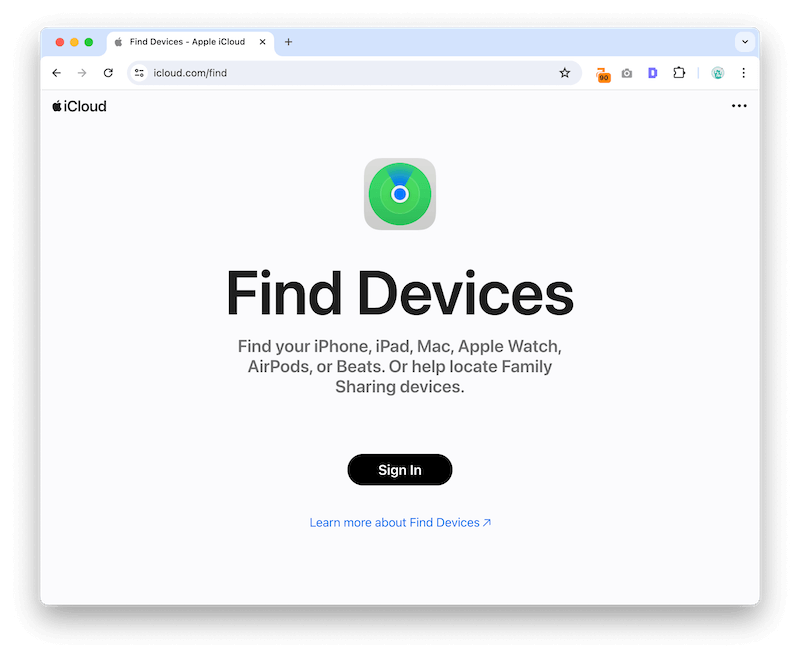
What if you didn’t have the Find My app enabled on your device when it was lost or stolen? You can still try to locate your device using iCloud. It’s one of the most popular methods because it’s so simple and doesn’t require any special software.
Here’s how to do it:
1. Go to www.icloud.com/find and log in with your Apple ID and password.
2. Click on the “Find My iPhone” icon.
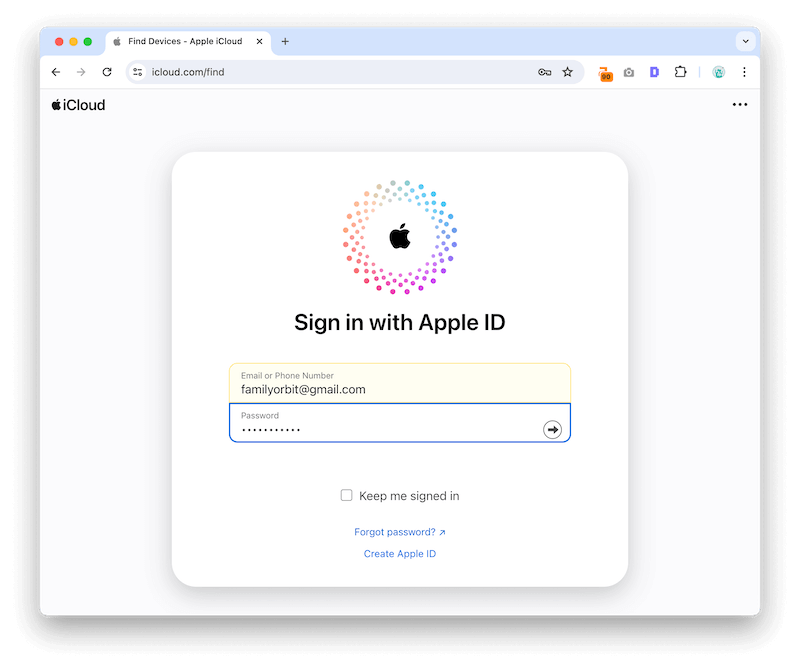
3. Enter your two-factor authentication code. If you don’t have one, you can still find your device by clicking on the “Find My iPhone” icon.
4. On the next screen, you’ll see a list with all of the devices that are linked to your iCloud account. Select the one that you want to find.
5. Your lost Apple device will appear on a map, and you can see its current location. If it’s not online, you will see the last known location.
6. You can also play a sound on your device to help you locate it, or put it in Lost Mode to lock it and display a custom message.
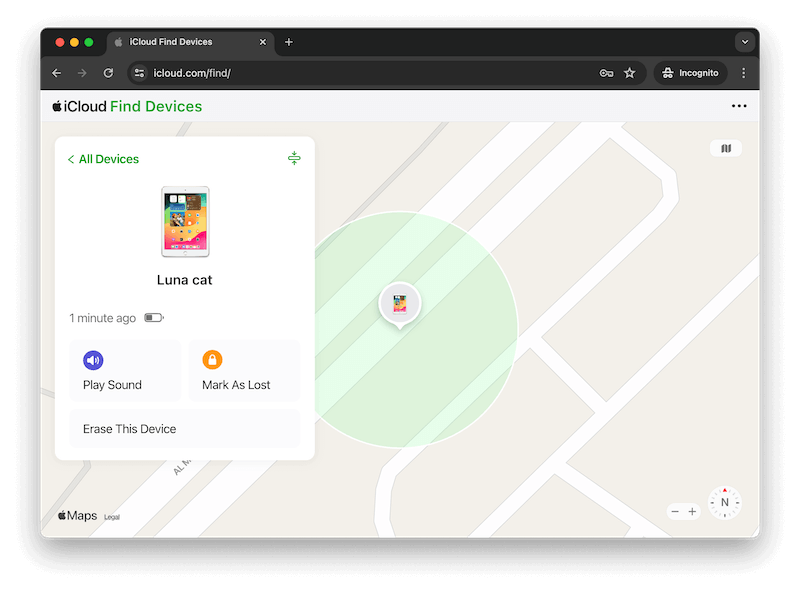
This is a great way to find a lost iPhone, but it only works if the device is still connected to the internet. If it’s not, then you won’t be able to track it down.
iCloud is also not the best option if you think that your device has been stolen, as the thief could easily just turn off the internet connection and you’ll be out of luck. If you think your device has been stolen, it’s best to contact the police and give them the information from your iCloud account.
Try IMEI-Based Tracking & Carrier Support
Even if “Find My iPhone” is off, you still have options. Your mobile carrier may be able to locate, block, or flag your iPhone using its unique IMEI number (International Mobile Equipment Identity).
What Is IMEI Tracking?
The IMEI is a unique identifier assigned to every mobile device. When your phone connects to a mobile network, it shares its IMEI — allowing the carrier to potentially:
- Locate the device (via cell tower triangulation or network logs)
- Block the device from being used on other networks
- Flag it as lost/stolen to global databases (e.g., GSMA Blacklist)
Steps to Use Carrier Support:
- Find your IMEI number:
- On the iPhone box, purchase receipt, or in past iCloud backups.
- Or dial
*#06#from any iPhone to display it.
- Call your mobile provider (AT&T, Verizon, T-Mobile, etc.):
- Report the phone lost or stolen.
- Provide your IMEI number and request a device block or location check.
- Ask if they offer additional tools, such as:
- Location history via cell towers
- Temporary suspension of service
- eSIM replacement if applicable
🛡️ Bonus Tip: Register Your IMEI on a Blacklist
If your carrier supports it, they can mark your phone as unusable, even if someone changes the SIM. This can deter theft and resale.
⚠️ Why You Should Avoid “Tracking URL” Services
Some websites offer services that claim to help you track a lost iPhone by sending a “tracking link” or bait text to the person who may have found or stolen it. While this may sound tempting, these methods come with serious risks and ethical concerns.
Find a Lost iPhone with Google Maps Timeline
If your iPhone was linked to a Google account with Location History enabled, you may still be able to see its last known location using the Google Maps app. Although the Timeline feature is no longer available on desktop, it can still be accessed from the mobile app.
To check your Timeline:
- Open the Google Maps app on another mobile device where you’re signed into the same Google account used on your iPhone.
- Tap your profile picture in the top right corner.
- Select “Your Timeline.”
- Choose the date your iPhone went missing.
- Look for any recorded locations or movement patterns that might indicate where the phone was last active.
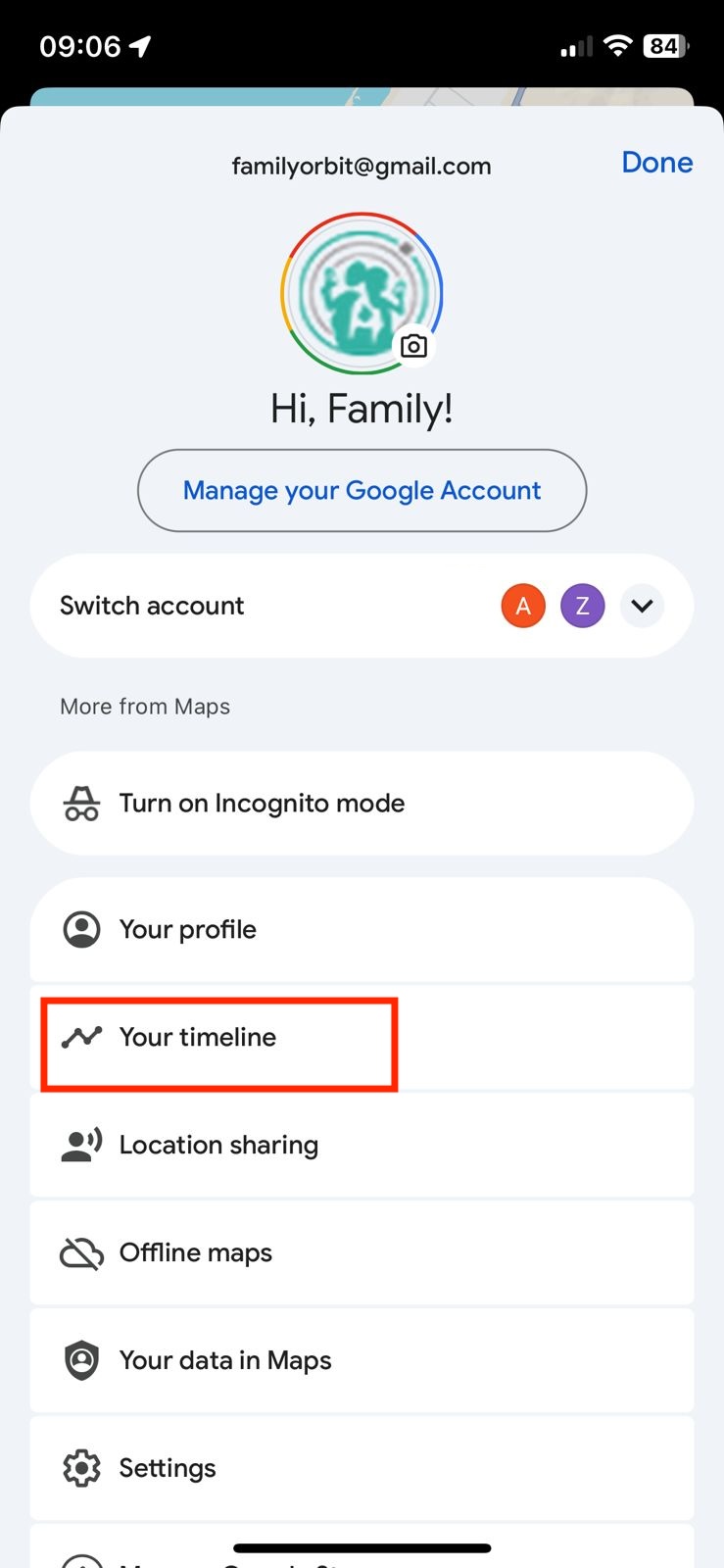
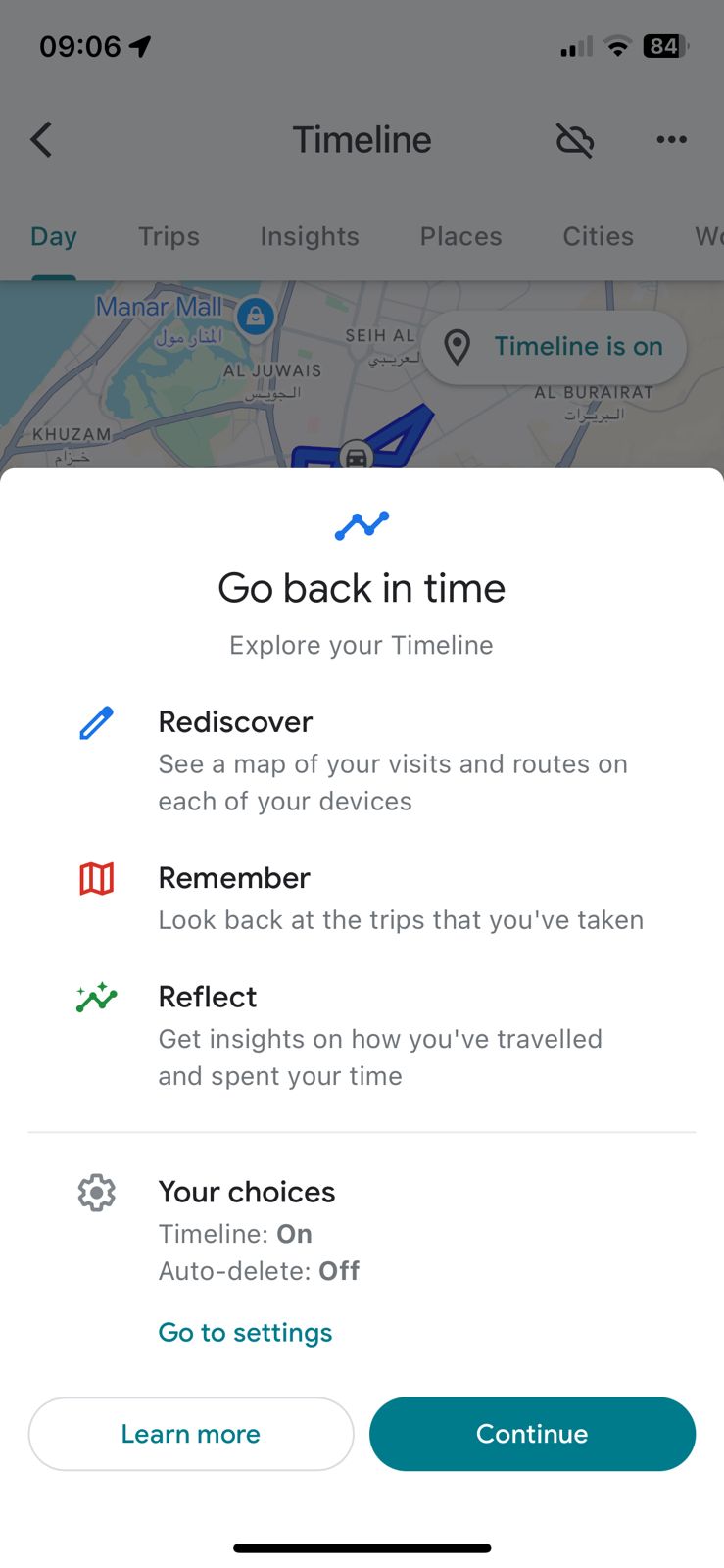
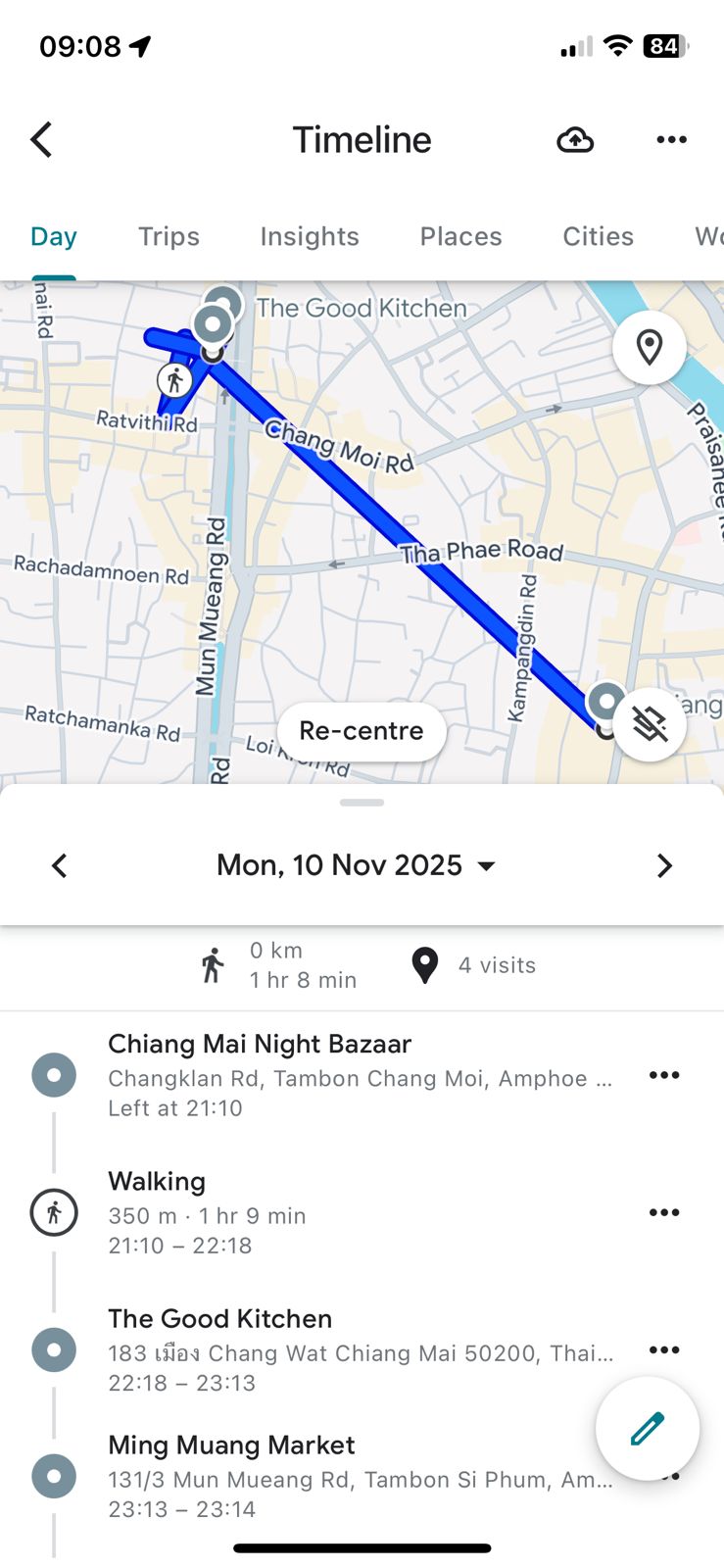
This method only works if Location History was previously turned on for that Google account. If it wasn’t, there would be no data available to review.
To ensure Location History is enabled in the future:
- In the Google Maps app, tap your profile picture.
- Go to “Your Timeline” > tap the three-dot menu > “Settings and Privacy.”
- Under “Location Settings,” verify that “Location History” is turned on.
This feature can help track general movement patterns of your device and narrow down its last known location, especially if other tools like iCloud are unavailable.
Although these three methods are the most popular ways to find a lost iPhone, there are a few other options that you can try.
Track an iPhone with Family Orbit
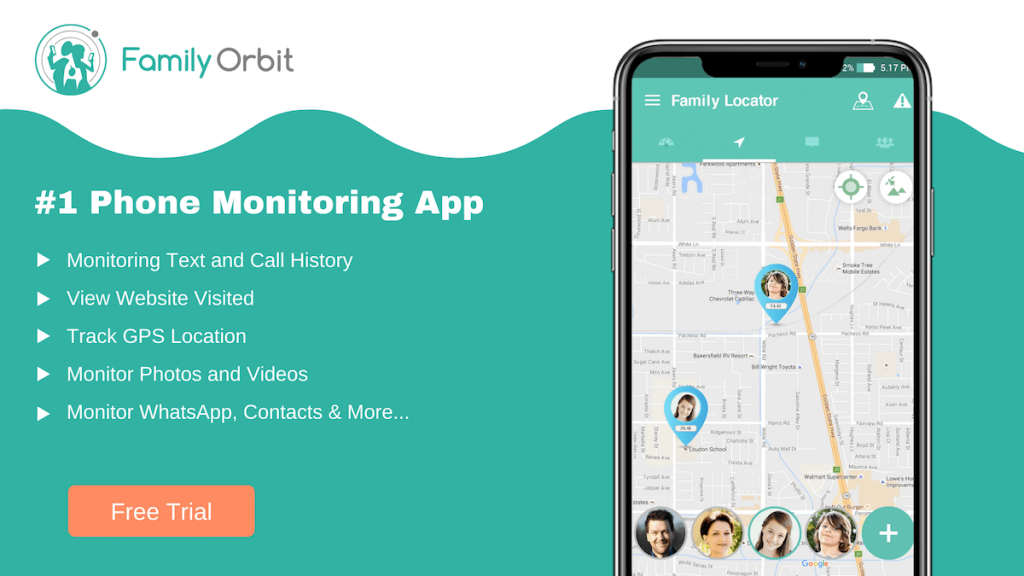
If Family Orbit was already installed on your iPhone before it went missing, the app may help you view the device’s last known location or recent activity. Family Orbit is designed as a parental and family safety tool, and it must be used only with proper consent and in full compliance with applicable laws. It cannot be installed or activated remotely on a device that is already lost.
Here is how Family Orbit works when set up in advance:
- Create a Family Orbit account and install the app on the devices you intend to monitor.
- Ensure that the device owner provides consent and that all required permissions, including location access, are enabled during setup.
- Once the monitored device is connected to your Family Orbit account, the app can report location history, geofencing alerts, and other safety features.
- If the device later goes missing, you can sign into your Family Orbit dashboard on another device to review its last recorded location or activity, if available.
Family Orbit is primarily designed to help parents and families stay informed about the safety of children or vulnerable family members. When properly installed beforehand, it can also assist in identifying the last known location of a device that becomes lost. Besides tracking someone’s location, Family Orbit can also be used to monitor their text messages, social media activity, and more.
However, it cannot track a device without prior setup, and it cannot be used to locate the phone of someone who has not given permission.
If you choose to use a monitoring app for family safety, Family Orbit offers a trial period so users can evaluate whether the features meet their needs before committing.
Although it’s a paid app, it does offer a free trial so that you can try it out before deciding if it’s worth the investment. Most likely, if you’re trying to find a lost iPhone, it will be worth the price.
Important: Legitimate Uses of Family Orbit
Family Orbit is a parental monitoring and family safety app. It is designed to be used with full consent of the person being monitored and must be set up before a device is lost. The app cannot be remotely installed after a phone goes missing and cannot track someone without their permission.
When used properly, Family Orbit can help parents and guardians monitor the location and safety of children, elderly family members, or other dependents. It may also provide helpful location data if a connected device is misplaced or lost.
Unauthorized use of monitoring apps may violate privacy laws and platform policies. Always ensure that tracking is done transparently and for legitimate purposes.
How to Find a Lost Indoor iPhone
If you’ve misplaced your iPhone inside your home or office, there are specific technologies designed to make locating it easier:
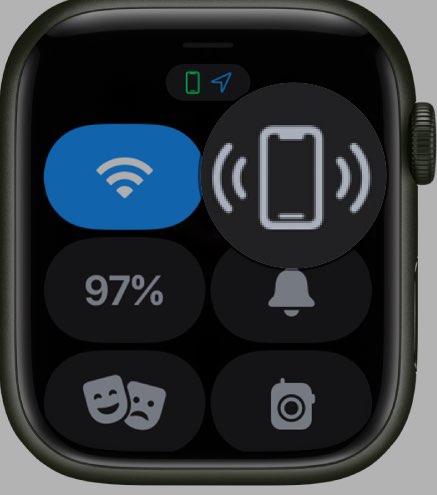
Use Your Apple Watch to Ping Your iPhone
If you own an Apple Watch:
- Swipe up on the watch face to access the Control Center.
- Tap the Ping iPhone button (icon with a phone and sound waves).
- Your iPhone will emit a loud sound, even in silent mode, helping you locate it.
Leverage Smart Home Devices
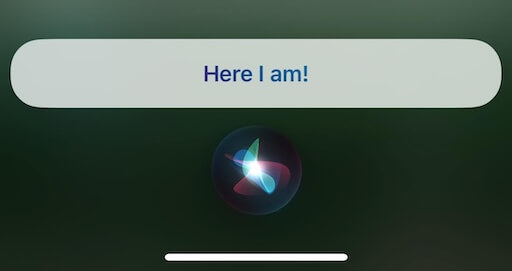
Devices like Apple HomePod or other Siri-enabled devices can help. Simply say, “Hey Siri, where’s my iPhone?” If the iPhone is nearby and connected to the same network, it will emit a sound.
Tile or AirTag Tracking
If you’ve attached a Tile or AirTag to your iPhone case:
Open the Find My app for AirTags or the Tile app.
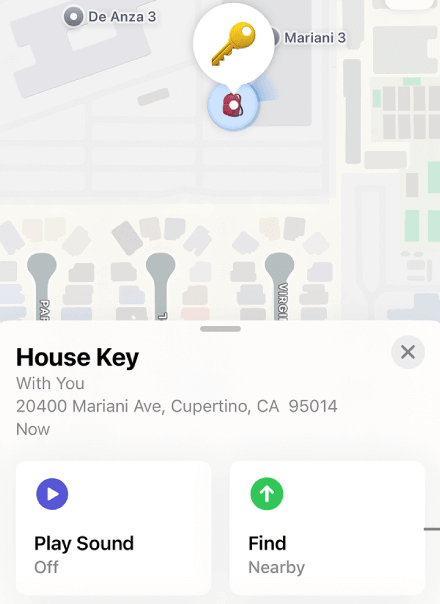
View the approximate location or make the accessory emit a sound for easier tracking indoors.
Bluetooth Headphones
If your Bluetooth headphones are still connected to the iPhone, play audio or call the phone to follow the sound.
These quick methods can save time and reduce stress when searching for your iPhone in familiar surroundings.
Frequently Asked Questions
How can I find a lost iPhone that is turned off?
If your iPhone is turned off or the battery is dead, live tracking won’t be possible. However, if Find My iPhone was previously enabled, you can view the device’s last known location via iCloud or the Find My app.
If Find My was not enabled, there is no built-in way to locate a powered-off iPhone. For future protection, consider enabling Find My and using apps like Family Orbit that can track a device if set up in advance.
How to Find a Dead iPhone Without Find My iPhone?
If Find My iPhone wasn’t set up, your options are limited. However, you can try:
- Retracing your steps to recent locations (home, workplace, public places)
- Checking Google Maps Timeline via the mobile app, if Location History was enabled
- Contacting your mobile carrier to block the device and inquire about network-based location assistance
- Using Family Orbit, if it was installed and linked before the device was lost
What Is iPhone Lost Mode?
Lost Mode is a security feature within Apple’s Find My system. When you activate it:
- The iPhone is remotely locked with your passcode
- A custom message and contact number can be shown on the lock screen
- Location tracking begins (if the device is online), even if Location Services were previously off
- Apple Pay and wallet features are disabled for added protection
What Happens When You Put an iPhone in Lost Mode?
Once Lost Mode is activated:
- The device is locked with a passcode
- Personal notifications are hidden
- Location updates are sent to your iCloud account when the device is online
- Apple Pay is disabled
- You can display a message for anyone who finds the phone
Lost Mode is a secure and effective way to protect your data and assist in recovery.
How to Retrieve Lost iPhone Data?
You can recover your data using these methods:
- iCloud: Access synced photos, contacts, notes, and iCloud Drive files by logging in at iCloud.com
- Backup Restoration: Restore from a previous backup using iTunes or Finder on a new device
- Third-party software: Tools like iMazing or Dr.Fone can help extract data from encrypted backups (not the device itself)
If no backups exist, recovery from a lost or stolen device is unlikely.
What should I do if my iPhone is stolen?
If your phone is stolen:
- Use Find My iPhone to enable Lost Mode, which locks the phone and shows your message
- File a police report with your IMEI or serial number
- Contact your mobile carrier to suspend service and block the SIM
- If Find My was enabled, monitor for location updates
- Avoid direct recovery attempts. Let local authorities handle the situation
Third-party apps like Family Orbit can assist only if installed and active prior to the incident.
How can I lock a stolen iPhone?
To lock a stolen iPhone:
- Visit iCloud.com or open the Find My app
- Sign in with your Apple ID
- Select the lost device
- Choose Mark As Lost or Activate Lost Mode
- Enter a passcode if not already set
- Add a custom lock screen message with contact information
This prevents access to your data and makes the device unusable to others.
Conclusion
Losing an iPhone can be stressful, but acting quickly and using the right tools can significantly increase your chances of recovering it. From checking iCloud or Google Maps Timeline to contacting your mobile carrier or reviewing your phone’s last known locations, there are several legitimate steps you can take—even if Find My iPhone was not enabled.
For families looking to protect their devices proactively, a monitoring solution like Family Orbit can offer additional peace of mind. When set up in advance and used with consent, it provides features such as location tracking, geofencing, and activity monitoring—all designed to support the safety of children and loved ones.
While no tool can guarantee the recovery of a lost device, taking preventative steps now can make a major difference in the future. If you’re interested in exploring a family-focused safety solution, Family Orbit offers a trial period so you can evaluate whether it fits your needs.
- Monitor Calls & Text Messages
- View Photos and Videos
- Location Tracking & Geofence
- Monitor WhatsApp & Kik
- Detect & Alert for Inappropriate Activities
- Monitor Websites Visited
- Compatible with Android and iOS