![5 Easy Ways to Check Recent Activity on iPhone [Updated]](https://www.familyorbit.com/blog/wp-content/uploads/2022/03/check-recent-iphone-activity-809x485.png)
Ever looked at an iPhone and thought, “What’s been happening on this thing while I wasn’t watching?” That question comes up a lot — especially for parents. In fact, nearly half of parents report checking their child’s phone activity at least once a week. In today’s digital world, that number makes sense.
Many people search for ways to check recent activity on an iPhone to keep their children safe. With social media, games, and messaging apps all competing for attention, the internet can feel like a house with too many open windows — close one, and another pops open. Keeping tabs on what’s going on is simply part of responsible parenting now.
But it’s not just about kids. Sometimes the goal is to track personal screen habits, monitor purchases, or review shared device usage. Whether it’s about understanding screen time, verifying app installs, or spotting anything out of place, checking recent activity can offer useful insights.
The good news? Apple includes several tools right on the iPhone that make this easy — no third-party apps, no spying, and no invasive tracking. Just built-in features that are already there, waiting to be used.
This guide will walk through the most effective methods to check recent activity on an iPhone — simple steps that provide a clear picture of how the device has been used, and where to look first.
- Use Screen Time to view app usage, screen pickups, and notifications
- Check Safari or Chrome browsing history — unless private mode was used
- View App Store purchase/download history to track installed (or deleted) apps
- Look at Battery settings to spot recent, high-use apps
- iPhones don’t show messages, private browsing, or in-app activity
- For more advanced monitoring, tools like FamilyOrbit can help — when used legally and responsibly
1. Check App Activity on iPhone with Screen Time
The Screen Time feature on iPhone is one of the most effective ways to check recent app usage. It’s built directly into iOS and offers detailed insights into how the device is being used — including which apps are opened, for how long, how many times the phone is picked up, and how many notifications were received.
To get started, go to Settings > Screen Time and follow the prompts to turn it on. If Screen Time is already active, you’ll see a dashboard with usage reports for Today and the Last 7 Days. For parents, it’s also possible to set up Screen Time for Family using Apple’s Family Sharing feature, which allows you to monitor your child’s device remotely.
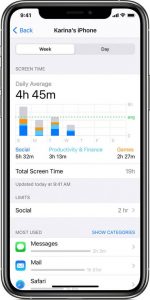
What Screen Time Shows:
- Total screen time by day or week
- A list of the most-used apps, sorted by usage time
- App category breakdowns (e.g., social, entertainment, productivity)
- Number of device pickups per day
- Number and source of notifications received
The information is displayed using simple bar charts and graphs, making it easy to understand at a glance. This can be especially helpful for identifying usage trends, whether it’s excessive social media time or increased screen pick-ups during school hours.
Limitations to Be Aware Of:
- It does not track specific actions within apps (e.g., browsing history in Chrome, messages sent, or content watched).
- Screen Time must be enabled in advance — it does not show historical data from before activation.
- Users can manually disable or reset Screen Time unless restrictions or passcodes are in place.
📌 Tip for Parents: To prevent tampering, make sure to set a Screen Time passcode. This keeps the child from turning off the feature or modifying settings.
2. Check Browsing History on iPhone Using Safari or Chrome
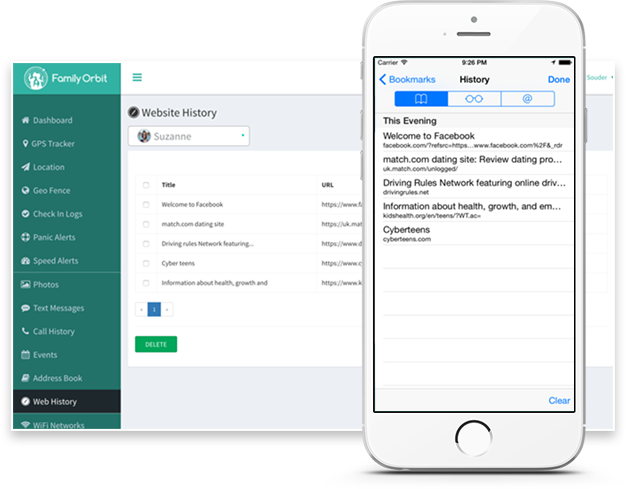
Another simple way to check recent activity on an iPhone is by reviewing the browser history. If the person uses Safari (the default iOS browser) or Google Chrome, these apps often store a list of previously visited websites — unless the user has taken steps to clear it or browse privately.
How to Check Safari Browsing History:
- Scroll to view past visited websites, organized by day
- Open the Safari app
- Tap the book icon at the bottom (iPhone) or top (iPad)
- Select the clock tab to open History
How to Check Chrome Browsing History:
- Open the Chrome app
- Tap the three dots (menu icon) at the bottom right
- Choose History
- View the list of visited websites and search terms
🔗 Google’s guide to view Chrome history on mobile
Limitations to Keep in Mind:
- Private or Incognito mode browsing is not recorded.
- History can be manually cleared at any time by the user.
- Only shows web-based activity — no data about app usage, messages, or in-app behavior.
- Does not include activity in other apps with built-in browsers (e.g., links opened inside Instagram or TikTok).
⚠️ Important Note: If the user frequently browses in Private Mode on Safari or Incognito Mode on Chrome, their history won’t appear here. It’s also possible to clear history automatically via settings.
Parents who want to prevent private browsing altogether can disable it using Screen Time content restrictions:
Settings > Screen Time > Content & Privacy Restrictions > Content Restrictions > Web Content,
then set it to Limit Adult Websites.
This also turns off private browsing in Safari.🔗 Apple’s guide to content restrictions
3. Check App Purchase or Download History
A useful way to review recent iPhone activity is by looking at the App Store purchase and download history. This shows which apps have been recently installed — including free apps — which can be especially helpful for monitoring new downloads or spotting anything unexpected.
This method is particularly effective when:
- Keeping track of shared Apple ID purchases across devices
- Trying to see if a new or suspicious app was installed
- Monitoring children’s downloads (even if the app was later deleted)
How to View App Purchase History from the App Store:
- Open the App Store
- Tap your profile icon (top right corner)
- Tap Purchased
- Choose My Purchases or your child’s name (if Family Sharing is set up)
- Browse recent downloads and app installations
- Use the “Not on this iPhone” tab to view deleted apps
🔗 Apple: View your App Store purchase history
Alternative Option: Check Online via Apple
You can also view purchase history (including app downloads, subscriptions, and billing) via Apple’s official website:
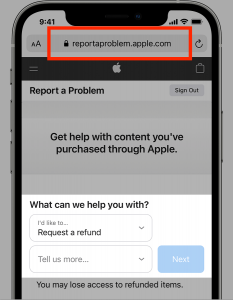
🔗 Visit reportaproblem.apple.com
Sign in with the Apple ID associated with the iPhone. From there, you’ll see a complete list of purchases tied to the account, including free apps.
Important Limitations:
- Only shows app-level activity — not what was done inside the app
- Requires access to the correct Apple ID
- If multiple Apple IDs are used on one device (common with kids), results may be incomplete
- Users can still download apps and hide them from their purchase history
⚠️ Note: Apps that were deleted from the device will still appear in the purchase history under the “Not on this iPhone” tab. This is a useful way to detect apps that may have been installed briefly and then removed.
4. Additional iPhone Activity Logs You Can Check
Beyond Screen Time and App Store history, there are a few other places on an iPhone where usage patterns can be reviewed. These don’t show everything, and each has limitations, but together they can offer helpful context — especially when other tools are limited or disabled.
Battery Usage Log
- Go to Settings > Battery
- View usage from the Last 24 Hours or Last 10 Days
This section shows:
- Which apps have used the most battery
- Screen-on vs. background activity
- Time of highest drain throughout the day
While it doesn’t show what exactly was done in each app, it’s a useful way to spot which apps were open and active — especially if Screen Time is off.
📌 Battery logs can’t be cleared manually, so they offer a more persistent trail of usage over time.
Notification Previews
iOS does not provide a full notification history, but it’s possible to check recent notifications on the lock screen or through widgets:
- Swipe down from the top-left corner of the screen to view Notification Center
- If notifications are grouped or hidden, check app-specific settings in Settings > Notifications
This can give clues about what apps were active, especially social media or messaging apps that send frequent pings.
🔒 Keep in mind: if notifications are turned off for an app, it won’t appear here at all.
Siri Suggestions & Spotlight Search History
Siri and Spotlight often surface frequently used apps or recent searches:
- Swipe down from the Home screen to access Spotlight Search
- Frequently used apps may appear under Siri Suggestions
- Tap the search bar and scroll to see past app searches (if not cleared)
This method isn’t meant for monitoring, but it can hint at recent interests, searches, or app usage patterns.
⚠️ Note: This data is stored locally and is not accessible remotely. Users can clear it manually, which removes all search history and suggestions.
These extra logs don’t replace full activity tracking, but when combined with Screen Time and app history, they help paint a clearer picture — especially on shared or supervised devices.
Understanding the Limits: What You Can & Can’t Monitor
iPhones offer several built-in tools for checking usage, but they don’t show everything — and that’s by design. These features are meant for general oversight, not surveillance.
Here’s what you can’t see without third-party tools:
- Private or incognito web browsing
- Messages (iMessage, SMS, or app chats)
- In-app activity (e.g., who someone messaged on Instagram)
- Social media DMs or deleted content
Always use monitoring tools ethically and within the law — especially when reviewing someone else’s device. For more on Apple’s stance, see their Privacy Policy.
5. When to Use Third-Party Monitoring Apps (and Why Caution Matters)
While built-in iPhone features are helpful, they have limits — especially when it comes to protecting younger users. This is where third-party parental monitoring tools, like Family Orbit, can help bridge the gap.
Family Orbit offers monitoring solutions that go deeper than what Apple provides, including tools to track messages, GPS, photos, and app usage — all while staying focused on family safety. These tools should always be used responsibly and with proper consent.
Monitoring adults or teens without permission may violate privacy laws. FamilyOrbit is designed for parents or legal guardians who want to support their child’s safety, not for unauthorized tracking of others.
Conclusion
Checking recent activity on an iPhone doesn’t have to be complicated — and in most cases, Apple’s built-in tools provide everything needed for a quick check-in. Whether the goal is better digital habits, staying informed about app usage, or keeping a child safe, tools like Screen Time, browsing history, and app download records offer a strong foundation.
For families needing deeper insights, third-party apps like Family Orbit can add an extra layer of visibility — as long as they’re used with care and within legal boundaries. The goal isn’t to invade privacy but to build awareness, trust, and safety — one responsible step at a time.
- Monitor Calls & Text Messages
- View Photos and Videos
- Location Tracking & Geofence
- Monitor WhatsApp & Kik
- Detect & Alert for Inappropriate Activities
- Monitor Websites Visited
- Compatible with Android and iOS