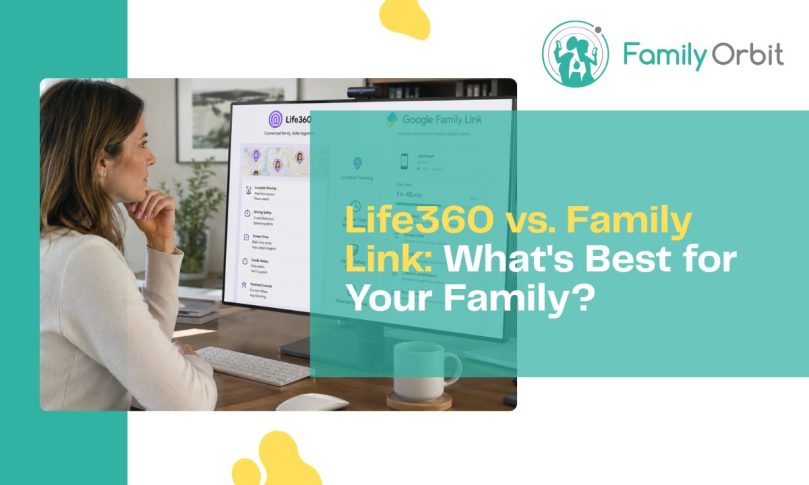
When parents compare Life360 and Google Family Link, it can look like a straightforward contest between two family safety apps. It is not.
Life360 is built first around one question: “Where is everyone, and did they get there safely?” It focuses on live family location, place alerts, location history, driving activity, crash-related features, and emergency assistance.
Google Family Link starts from a different question: “How is my child using their Android device?” It focuses on screen time, app approvals, app limits, content restrictions, Google Account supervision, device schedules, and basic child location.
There is overlap. Both can show a child’s location and notify parents about arrivals or departures. But the overlap is smaller than it first appears.
If you expect Family Link to replace Life360’s detailed location and driving tools, it will feel basic. If you expect Life360 to manage YouTube access, approve Play Store downloads, or lock an Android phone at bedtime, it is the wrong product.
This guide explains what each app actually does well, where each one falls short, and which one makes sense for your child’s phone and your family’s priorities.
Comparison
Life360
Best at: live family location, place alerts, trip history, driving insights, and physical safety.
Google Family Link
Best at: free Android and Chromebook supervision, screen time, app controls, and Google service restrictions.
Quick Verdict (TL;DR)
Both apps help parents stay informed, but they solve different day-to-day problems. Your child’s device matters almost as much as the features you want.
Choose Life360 if:
- Your main concern is where your child is.
- You want stronger arrival, departure, route, and driving information.
- Your family uses a mix of iPhones and Android phones.
- You are willing to pay for longer history or advanced safety features.
Choose Family Link if:
- Your child mainly uses an Android phone or Chromebook.
- You want screen time limits, downtime, School Time, and app blocking.
- You want to approve Play Store downloads and manage Google services.
- You need a capable parental control tool without another subscription.
Life360 is the better family location and driving safety app.
Google Family Link is the better free Android parental control system.
For many Android families, using both is more sensible than forcing one to do the other’s job.
What These Apps Are Actually Built For
Life360 and Family Link are compared because both appear on parents’ phones and both can show a child on a map. Their real purposes, however, are very different.
Life360 is a family coordination and physical safety platform. Its main jobs are to answer questions such as:
- Where is my child right now?
- Did they arrive at school, practice, or home?
- What route did they take?
- How was a teen driving?
- Could the family need help after a crash or emergency?
The map and geofence alerts are the center of the experience. Paid memberships expand the amount of location history, number of place alerts, driving reports, crash response, roadside assistance, and other protection features.
Google Family Link is an account and device supervision tool. Its main jobs are to answer questions such as:
- How long has my child used their phone today?
- Which apps are taking most of their time?
- Can they install this Play Store app?
- Should the device lock at bedtime or during school hours?
- Which websites, YouTube experiences, and Google Search settings are allowed?
Family Link also shows the location of a supervised Android device and supports family places with arrival and departure notifications. But location is one feature inside a broader parental control system. It is not the entire product.
This is why the “better” app depends on the problem:
- If you are asking, “Did they reach football practice safely?”, Life360 feels more complete.
- If you are asking, “Why are they still watching YouTube after bedtime?”, Family Link is the obvious choice.
Head-to-Head Comparison
| Feature | Life360 | Google Family Link | Better choice |
|---|---|---|---|
| Current child location | Strong live family map on iPhone and Android | Shows supervised Android and compatible Fitbit location | Life360 |
| Arrival and departure alerts | Core feature with saved Places; limits depend on plan | Family places and location notifications | Life360 |
| Location history | 2, 7, or 30 days depending on membership | No comparable multi-day route playback inside Family Link | Life360 |
| Driving and crash features | Driving summaries, reports, crash detection, and roadside options | Not designed for teen driving analysis | Life360 |
| Screen time | No full device time-limit system | Daily limits, app limits, bonus time, Downtime, and School Time | Family Link |
| App approvals and blocking | Not a core capability | Approve or block Play Store apps and manage app permissions | Family Link |
| Web and Google service controls | Not a child web-filtering platform | Controls for Chrome, Google Play, YouTube, and Search | Family Link |
| Child iPhone support | Core location features work on iPhone | Most supervision settings do not work on a child’s iPhone or iPad | Life360 |
| Cost | Useful free tier; advanced plans cost extra | No separate paid subscription required | Family Link |
Feature Breakdown — What You Actually Get
Live Location Tracking
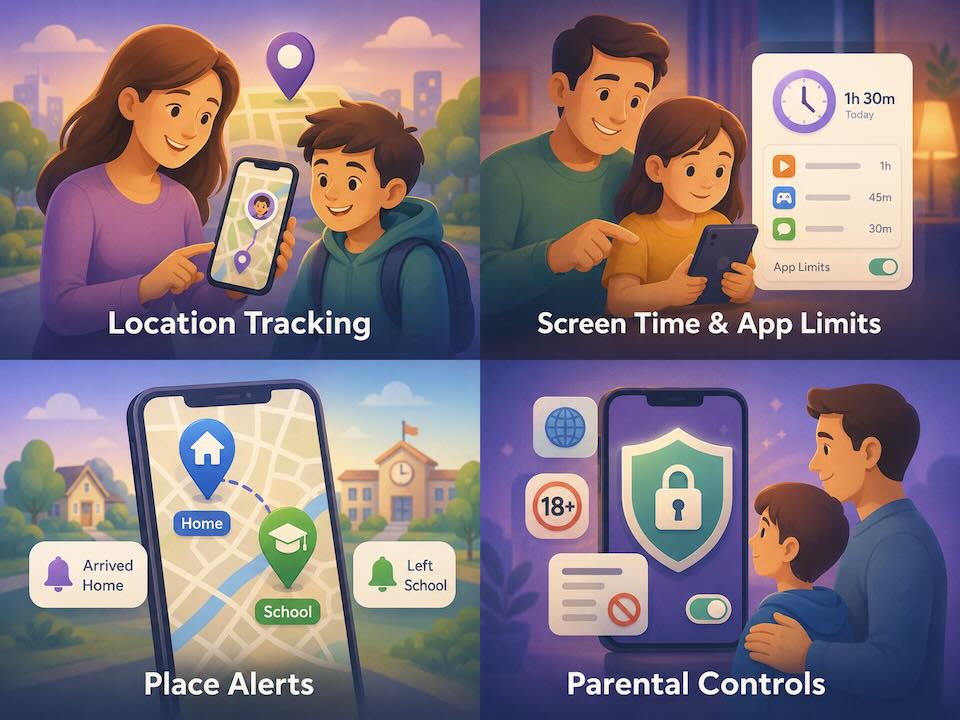
Life360’s strongest feature is its family map. It is designed for repeated check-ins throughout the day, with location sharing, estimated arrival information, saved Places, battery information, and activity built around each Circle member.
Google Family Link can locate a child’s supervised Android phone or compatible Fitbit device, provided the device is powered on, recently active, connected to the internet, and sharing location. Parents can also ring the device and see remaining battery life.
The practical difference is the experience. Life360 treats location as an ongoing family coordination tool. Family Link treats it as a useful part of device supervision.
Winner: Life360. Family Link is enough for a quick “where is the phone?” check, but Life360 is better for families that depend on location throughout the day.
Location History and Place Alerts
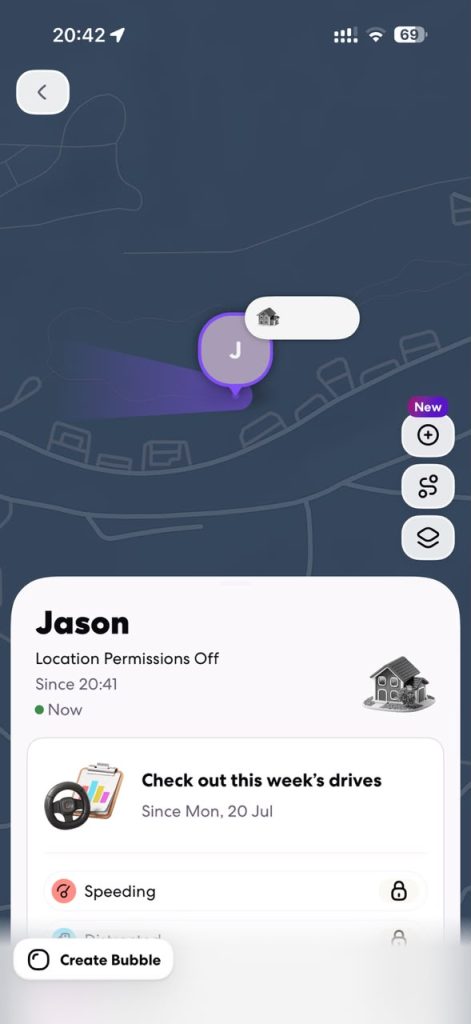
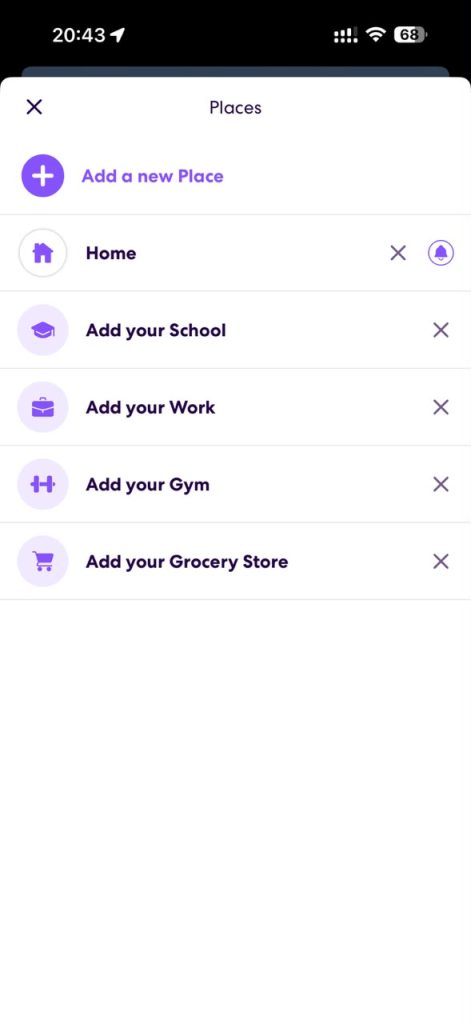
Life360’s free plan currently includes two days of location history and alerts for two Places. Higher tiers extend history to seven or 30 days and increase the number of saved Places or alerts.
That history can help parents retrace a route, understand when someone arrived, or check where a phone was earlier. It is much closer to a movement timeline than a simple pin on a map.
Family Link supports family places and location alerts such as home and school, plus notifications when a child arrives or leaves. That is useful, especially because it comes without an additional subscription. However, it does not provide the same Life360-style multi-day location history and trip review.
Winner: Life360 for location depth. Family Link is perfectly adequate if you only need current location and a few important arrival alerts.
Screen Time and Device Schedules
This is where Family Link pulls far ahead.
Parents can set daily device limits, create individual limits for particular apps, mark educational or essential apps as unlimited, add bonus time, and schedule Downtime or School Time. During restricted periods, only selected apps may remain available.
Life360 does not offer a comparable system for locking a child’s device, setting app-by-app time limits, or creating bedtime and school schedules.
Winner: Google Family Link, easily.
App Downloads, App Blocking, and Permissions
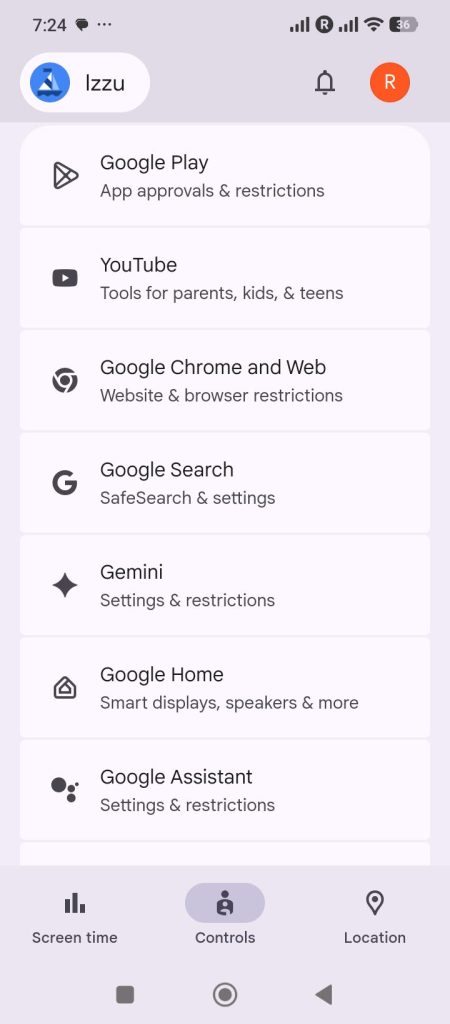
Family Link can require approval for new Google Play downloads, block installed apps, set app limits, and manage selected permissions. It also gives parents a view of app activity, making it easier to spot which apps are consuming the day.
There are limits worth understanding. Approval rules mainly apply to Google Play’s billing and download systems. Previously approved apps, updates, Family Library apps, and purchases through alternative billing may not trigger a fresh approval request. Parents still need to review installed apps and permissions instead of assuming every change will be stopped automatically.
Life360 is not designed to approve app downloads or block apps.
Winner: Google Family Link.
Website, YouTube, and Search Controls
Family Link lets parents manage controls across Google services, including Chrome, Google Play, YouTube, and Google Search. Depending on the child’s age and setup, parents can restrict websites, manage SafeSearch, choose supervised YouTube options, control app and website permissions, and build a more practical website blocking strategy.
These are useful guardrails, but they are not the same as reading messages or using artificial intelligence to detect bullying, self-harm, or risky conversations. Family Link helps control access and time; it does not inspect every corner of a child’s online life.
Life360’s consumer plans are centered on location, driving, identity, and emergency protection rather than child content filtering.
Winner: Google Family Link for Google ecosystem controls.
Driving Safety
Driving is one of Life360’s biggest advantages. Depending on the membership and region, Life360 can provide family driving summaries, individual driver reports, drive history, crash detection, emergency dispatch, and roadside assistance.
Its drive analysis can identify events such as high speed, hard braking, rapid acceleration, and phone usage while driving. This makes Life360 especially relevant once a child becomes a new driver.
Family Link does not attempt to be a teen driving safety product.
Winner: Life360, by a wide margin.
Emergency Features
Life360’s paid plans can add crash detection, SOS help alerts, emergency dispatch, roadside assistance, and other protection benefits. Availability varies by plan and country, so parents should check the local membership page rather than assuming every advertised service is available everywhere.
Family Link helps parents locate and ring a device, but it is not an emergency response or roadside assistance service.
Winner: Life360.
iPhone vs Android — This Can Decide the Winner
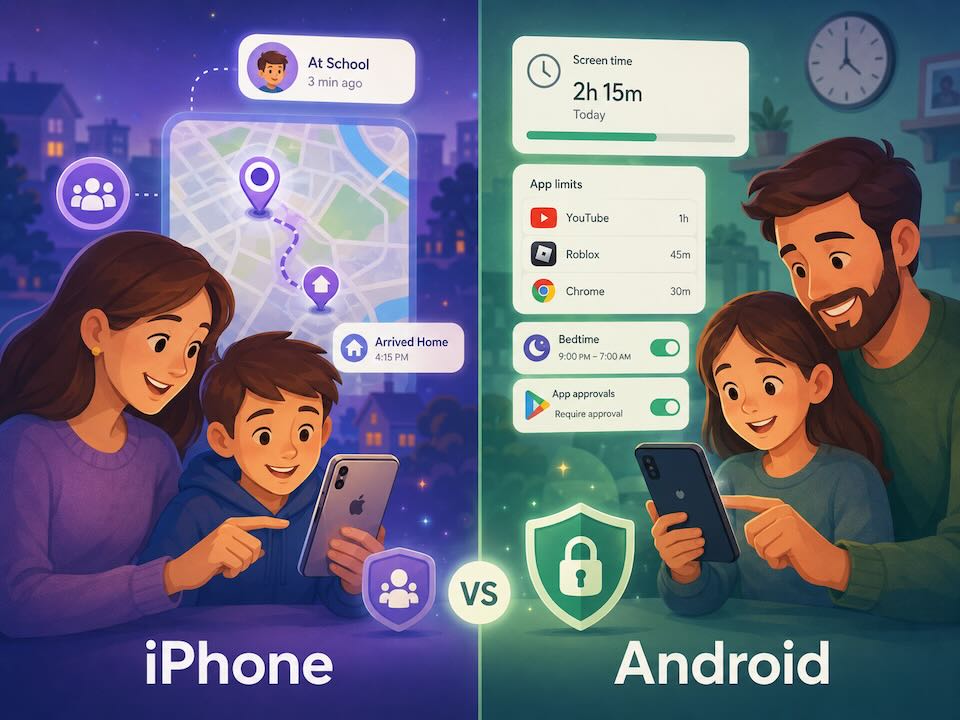
This is the most important practical part of the comparison.
A parent can install the Family Link parent app on an Android phone or iPhone. But that does not mean Family Link can fully supervise a child’s iPhone.
Life360: iPhone vs Android
| Feature | Child’s iPhone | Child’s Android |
|---|---|---|
| Live family location | Yes | Yes |
| Location history | Yes, according to plan | Yes, according to plan |
| Place alerts | Yes | Yes |
| Driving features | Available with correct permissions and supported plan | Available with correct permissions and supported plan |
| Screen time and app blocking | No | No |
Life360’s core experience is broadly similar across iPhone and Android. Location permissions, precise location, mobile data, background activity, and battery settings still need to be configured correctly.
Google Family Link: iPhone vs Android
| Feature | Child’s iPhone or iPad | Child’s Android phone |
|---|---|---|
| Screen time limits | Most Family Link supervision settings do not work | Yes |
| Device location in Family Link | No | Yes |
| App activity | No full device supervision | Yes |
| Block apps and manage permissions | No full device supervision | Yes |
| Chrome website restrictions | Most supervision settings do not apply | Yes, within supported Google services |
| Google Account sign-in approvals | Some account-level controls remain | Yes, with fuller supervision |
Google says most Family Link supervision settings will not work when a child uses Google apps on an iPhone or iPad. That includes screen time limits, device location, app activity, app blocking, app permissions, and Chrome website restrictions.
The honest platform takeaway:
- For a child with an iPhone, Life360 is the clear winner in this comparison because Family Link is not a full iPhone monitoring solution.
- For a child with an Android phone, Family Link is far more useful for device controls.
- For an Android child who also travels independently, using Family Link for controls and Life360 for location can make sense.
- Family Link can supervise Chromebooks, but Chromebook location reporting is not available.
Setup and Ease of Use — Where Parents Get Frustrated
Life360 Setup
Life360 is usually quick to understand: create or join a Circle, invite family members, and allow location access. The problems normally begin when a phone quietly limits background activity.
Location may stop updating properly when:
- Location access is not set to the strongest available option.
- Precise location is disabled.
- Low Power Mode or battery optimization restricts the app.
- Mobile data or background data is blocked.
- The app is force-closed, logged out, or removed.
Once the permissions are correct, the basic family map is easy to use. The harder part is understanding which features belong to Free, Silver, Gold, or Platinum, because pricing and benefits vary by country.
Google Family Link Setup
Family Link can take longer because it is tied to the child’s Google Account, age, device, and family group. Parents may need to create a child account, add supervision to an existing account, sign the child into an Android device, and then configure app, content, screen time, and location settings separately.
The setup is worth it for a younger Android user because the controls are integrated into the operating system. But it can also feel scattered. Screen time, app approvals, Chrome controls, YouTube settings, location, contacts, and account permissions do not all live on one simple page.
Bottom line:
Life360 is easier if your goal is mainly location.
Family Link takes more configuration, but it controls far more of an Android child’s device.
Age, Independence, and What Happens as Children Grow
Life360 is based around a family Circle rather than a child Google Account. It can be used with older children, parents, partners, and even grandparents. That makes it more flexible for families who want mutual location sharing rather than a strict parent-child control system.
Family Link is explicitly built around supervised child or teen Google Accounts. The exact age rules depend on the child’s country. Once a child reaches the applicable age, account management and the ability to stop supervision may change depending on how the account was created and supervised.
This difference affects the family dynamic:
- Life360 can feel like shared family coordination when every member participates openly.
- Family Link feels more like parent-managed device rules, especially for younger children.
Neither model is automatically healthy or unhealthy. The important part is being honest about why the app is installed and what parents can see or control.
Privacy and Trust — What Parents Should Be Comfortable With
Both apps require access to sensitive information, but the information is different.
Life360 depends on continuous or frequent location data. Circle members may be able to see each other’s locations, routes, driving activity, and saved place events depending on settings and membership. That is useful only when the family is comfortable with ongoing location sharing.
Family Link gives a parent control over a child’s supervised Google Account and supported device. Depending on the setup, a parent may see app activity, set limits, approve downloads, manage permissions, locate the device, reset the account password, and change account information.
The biggest mistake is treating either product as a secret surveillance tool. Children who feel trapped tend to look for ways around permissions, accounts, secondary devices, browsers, or app limits.
A healthier approach is to explain:
- Which information the parent can see.
- Which controls are enabled.
- What problem each rule is meant to solve.
- When limits will be reviewed or relaxed.
Technology works better when it supports a family agreement instead of replacing one.
Pricing — What You Will Actually Pay
Google Family Link does not require a separate paid parental control subscription. The parent and child apps are available through Google’s ecosystem, and the core supervision features are included.
Life360 uses a freemium model. On its US pricing page in July 2026, Life360 listed:
- Free: $0, including two days of location history, two Place Alerts, and a family driving summary.
- Silver: $7.99 per month, adding seven days of history, more Place coverage, and crash detection.
- Gold: $14.99 per month, adding 30 days of history, unlimited Place Alerts, individual driver reports, emergency dispatch, and roadside assistance.
- Platinum: $24.99 per month, adding higher-level travel, theft, identity, and emergency benefits.
Annual billing was advertised at a discount. Prices, tier names, trials, and included benefits can vary by country and may change, so parents should confirm the current local plan before subscribing.
Pros and Cons
Life360
- Strong family location experience on iPhone and Android
- Useful location history and Place Alerts
- Driving summaries, reports, and crash-related features
- Works for the whole family, not only young children
- Easy to understand once permissions are configured
- No serious screen time or app-control system
- Most advanced safety features require a subscription
- Continuous location sharing can feel intrusive
- Accuracy depends on phone permissions, connectivity, and battery settings
- Some premium benefits vary by country
Google Family Link
- No separate subscription fee
- Strong screen time, app limits, Downtime, and School Time
- App approvals, blocking, and permission management
- Controls for Chrome, Play, YouTube, and Search
- Useful location and family place alerts for supervised Android devices
- Most supervision tools do not work on a child’s iPhone or iPad
- No Life360-style location history or driving analysis
- Settings can feel fragmented across Google services
- Controls are limited outside supported Google and Android environments
- It does not detect risky conversations or make the internet automatically safe
Which One Should You Choose?
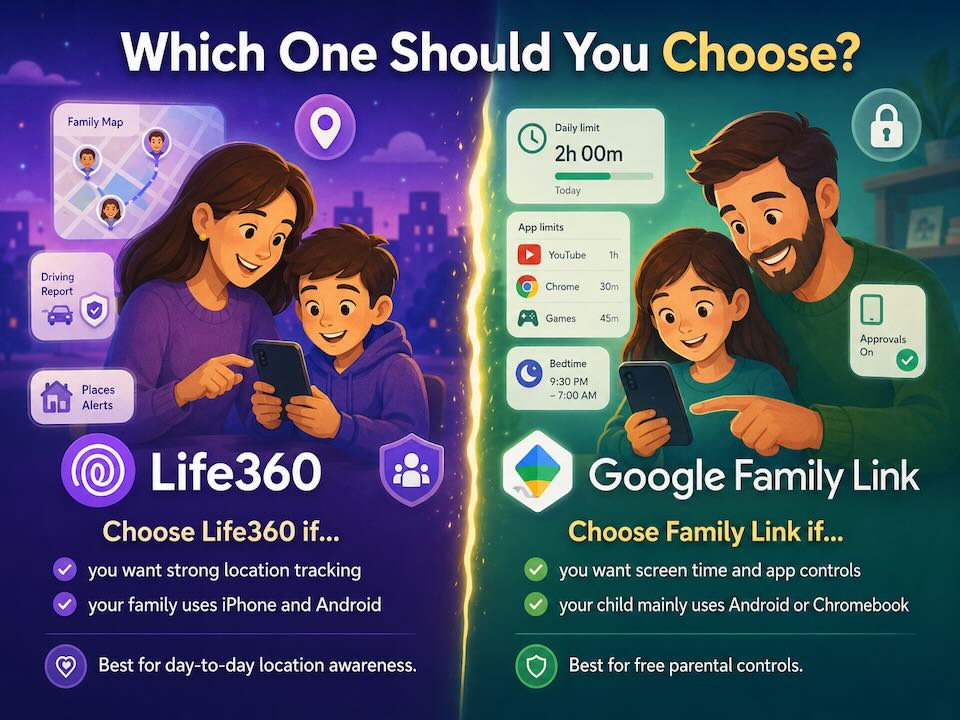
Choose based on your child’s device first, then your biggest concern.
Choose Life360 when:
- Your child uses an iPhone.
- You need reliable family location across mixed devices.
- You care about route history, saved Places, pickups, or commutes.
- Your teenager is driving.
- You want crash, SOS, roadside, or emergency features.
Choose Google Family Link when:
- Your child uses an Android phone or Chromebook.
- You want to limit daily screen time or individual apps.
- You need bedtime, Downtime, or School Time schedules.
- You want Play Store approvals and Google service controls.
- You do not want to pay for another parental control subscription.
Use both when:
- Your child has Android, and you want both device controls and better location history.
- You want Family Link to manage apps while Life360 handles trips and driving.
- Your household includes younger children and older teen drivers with different needs.
Using both is not automatically excessive. It becomes excessive when parents enable every control, check every movement, and never explain the rules. A limited, transparent setup is usually more effective than maximum monitoring.
Our verdict: For a younger child with Android, start with Family Link because it is free and covers the basics well. Parents comparing other location options can also review our guide to free cell phone tracker apps. Add Life360 only if its stronger location or driving features solve a real problem. For a child with an iPhone, Family Link is not a realistic substitute for Life360.
Frequently Asked Questions
Can Google Family Link track location like Life360?
Does Family Link work if my child has an iPhone?
Can Life360 limit screen time or block apps?
Is Google Family Link completely free?
Can I use Life360 and Family Link together?
Which app is better for a teenager?
Can a child disable Life360 or Family Link?
Which app uses more battery?
Does Family Link show text messages?
But What If Location and Screen Time Still Are Not Enough?
Life360 helps answer “Where are they?”
Google Family Link helps answer “How are they using their Android device?”
Some parents eventually need a wider view: meaningful alerts, activity context, and reports that help them notice changes without spending the whole day checking maps and control panels.
That is where Family Orbit fits. It is designed as a parental intelligence and family safety platform rather than another basic location-sharing app.
Family Orbit can add:
- AI-assisted alerts that surface potentially risky patterns.
- Actionable reports that reduce constant manual checking.
- Context around changing activity instead of isolated data points.
- A compliance-first approach designed for transparent, legitimate parental use.
The right setup should match your child’s age, device, and real risks. More monitoring is not always better. Better information, clear boundaries, and honest conversations usually are.