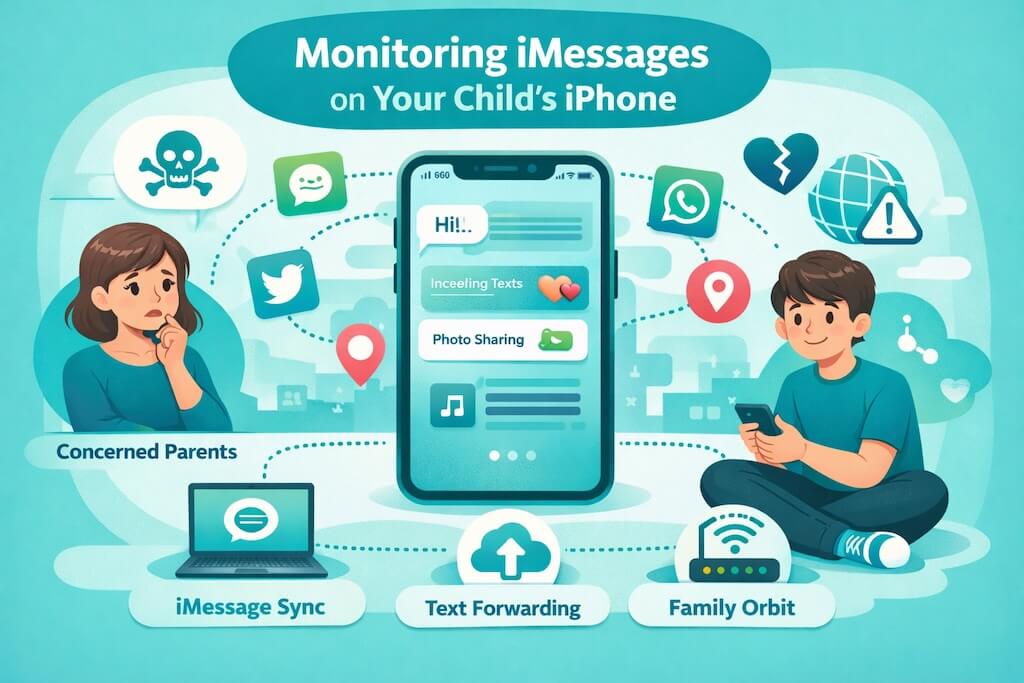
Are you worried about who your child is texting and what conversations may be happening on their iPhone? If you’ve ever wondered, “How can I monitor my child’s text messages on iPhone?”, you’re not alone. As kids grow more independent, many parents find it increasingly difficult to stay informed — especially when most communication now happens through private digital messages.
2024 Pew Research Center survey found that 95% of teens have access to a smartphone, with messaging platforms like iMessage, Snapchat, and WhatsApp playing a major role in their social lives. While these apps make it easy for kids to stay connected, they can also expose them to cyberbullying, online predators, peer pressure, and inappropriate content — often without parents being aware.
That’s why having a safe, ethical way to monitor text messages on iPhone can be an important part of modern digital parenting. Whether you’re seeking peace of mind, responding to concerns, or simply wanting to stay involved, there are legitimate tools and methods that can help — without unnecessarily invading privacy or damaging trust.
In this guide, we’ll walk you through three practical ways to track iMessages on your child’s iPhone — including built‑in Apple features, automation‑based solutions, and tools like Family Orbit, which can act as a reliable iMessage tracker using WiFi sync technology.
🛑 Disclaimer: The tools and techniques outlined in this guide are intended solely for lawful and ethical parental monitoring of minor children. Always ensure that your actions comply with local laws and that you foster a trusting environment with your child.
Method 1: iMessage Sync via Apple ID
Best for: Transparent, real-time monitoring using Apple’s built-in features
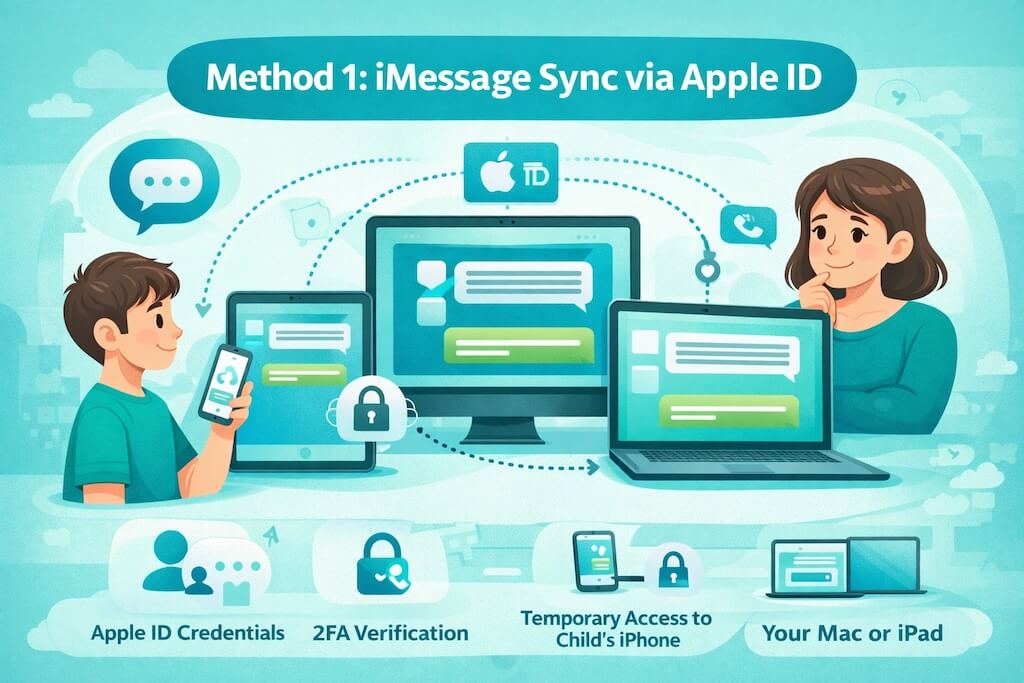
If you’re a parent asking, “How can I monitor my child’s text messages on iPhone?”, the most direct and native way is through iMessage sync using your child’s Apple ID. This method allows you to mirror their iMessages on your own Apple device — like a MacBook or iPad — so you can see incoming and outgoing messages as they happen.
How It Works
Apple’s ecosystem supports syncing iMessages across multiple devices logged into the same Apple ID. That means if your child uses iMessage on their iPhone and you sign into their Apple ID on another device, you’ll have access to the same conversations — in real time.
This method doesn’t require any third-party app or software and works seamlessly if set up correctly and with your child’s cooperation or initial access.
What You’ll Need
- ✅ Your child’s Apple ID and password
- ✅ Temporary access to their iPhone (to approve the login and enable settings)
- ✅ A Mac, iPad, or other Apple device of your own to sync messages
- ✅ Two-factor authentication (2FA) access, typically via their iPhone
🛡️ Note: This method works only as long as the Apple ID remains signed in and syncing is active. If the child signs out, changes the password, or disables message syncing, access is revoked.
Step-by-Step Setup Guide
- Open the Messages app on your Mac or iPad.
- Sign in using your child’s Apple ID credentials.
- You’ll be prompted to enter a 2FA verification code sent to their iPhone — enter this to complete login.
- On your child’s iPhone, go to:
Settings > Messages > Text Message Forwarding
Enable your Mac/iPad from the list of available devices. - Also ensure iMessage syncing is turned on under:
Settings > [Your Name] > iCloud > Show All > Messages > Toggle ON - Once set up, all iMessages (sent and received) will appear on your device.
Benefits
- 🔄 Real-time message viewing without needing constant device access
- 🔍 See full conversation threads, including timestamps and contact info
- 🧩 No need for extra apps or subscriptions — uses Apple’s native tools
- 🧘 Gives parents a transparent way to stay informed, with less disruption
Limitations
- ❗ Does not show deleted messages — if your child deletes a message before it syncs, you won’t see it
- 🛑 Requires 2FA access and password — if the child changes credentials, the sync breaks
- 🔔 Your child may receive alerts that a new device was added, reducing stealth
- ⚙️ Only works for iMessages, not regular SMS (unless forwarding is set up separately)
If you’re looking for an iMessage tracker that doesn’t require third-party apps or jailbreaking, this is the most secure and reliable method — provided you have Apple ID access.
Method 2: AutoForward via Shortcuts Automation
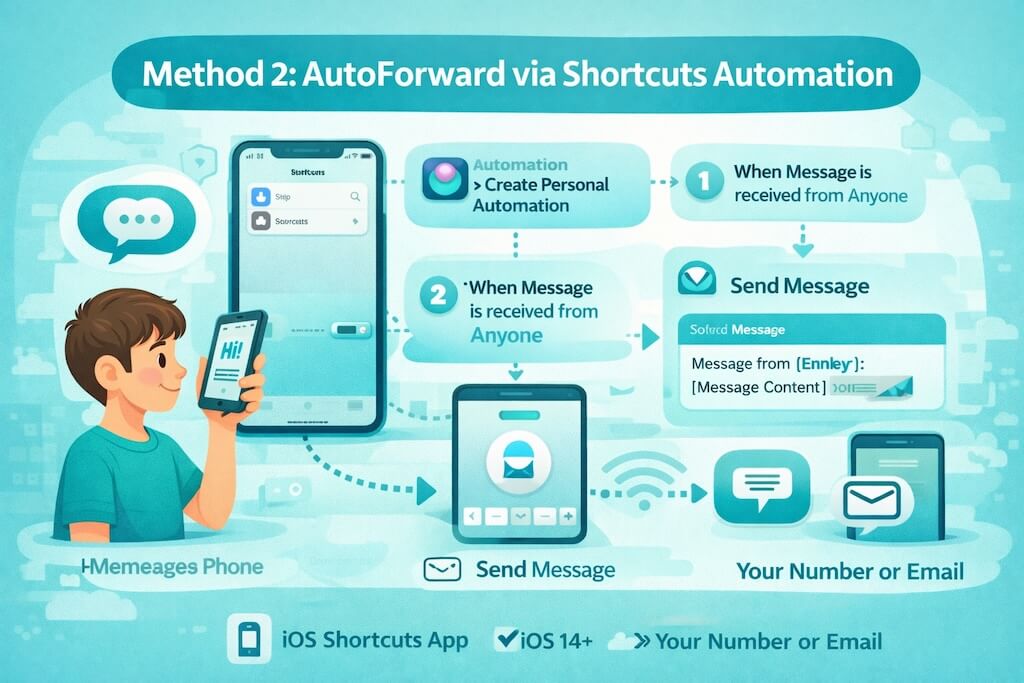
Best for: Tech-savvy parents looking for a lightweight iMessage tracker without needing Apple ID access
If you don’t have access to your child’s Apple ID, but still want a way to monitor text messages on iPhone, you can use the AutoForward Text app to create a message-forwarding automation. This allows incoming texts or iMessages to be automatically forwarded to your own phone number or email address.
This method isn’t foolproof and has limitations, but it can serve as a creative, app-free workaround that works silently in the background — ideal for occasional oversight or safety checks.
What You’ll Need
- 📱 Your child’s iPhone (with temporary access)
- 🔒 iOS 14 or later (Shortcuts app comes pre-installed)
- ☑️ Your own phone number or email to receive forwarded messages
⚠️ Note: This method only forwards incoming messages, not full conversation threads or deleted texts.
Step-by-Step Setup Guide
- Open the Shortcuts app on your child’s iPhone.
- Tap Automation > Create Personal Automation.
- Select Message > “When Message is received from Anyone”.
- Tap Next, then Add Action → search for “Send Message.”
- Configure the action to forward the received message content to your own number or email, like:
“Message from [Sender]: [Message Content]” - Toggle Ask Before Running to OFF and confirm.
Once set up, each incoming message will automatically trigger the shortcut and forward the message text to your number or inbox.
Benefits
- 🧠 No need for Apple ID login or 2FA
- 📩 Works for iMessages and SMS (if enabled in Messages settings)
- 🔇 Can run discreetly with no app notifications
- 📱 Uses only built-in iPhone tools (no external software required)
Limitations
- 🚫 Does not forward media (photos, videos, voice notes)
- 💬 Only forwards incoming messages — not outgoing ones
- ❌ Can be deleted or turned off if the child finds the automation
- ⚠️ Not reliable for group chats or encrypted attachments
- 🔋 May impact battery if configured improperly
When This Method Makes Sense
This approach is suitable for:
- Parents who can access the child’s iPhone temporarily, but don’t have Apple ID access
- Monitoring younger children or shared devices
- Supplementing other monitoring methods (e.g., screen time limits, app usage insights)
It’s a flexible, code-free way to implement basic iMessage tracking for specific use cases.
For parents searching for a free iMessage tracker, this method offers a lightweight solution without apps, subscriptions, or complex setup. However, its simplicity comes with trade-offs in coverage and reliability.
Method 3: Family Orbit with WiFi Sync
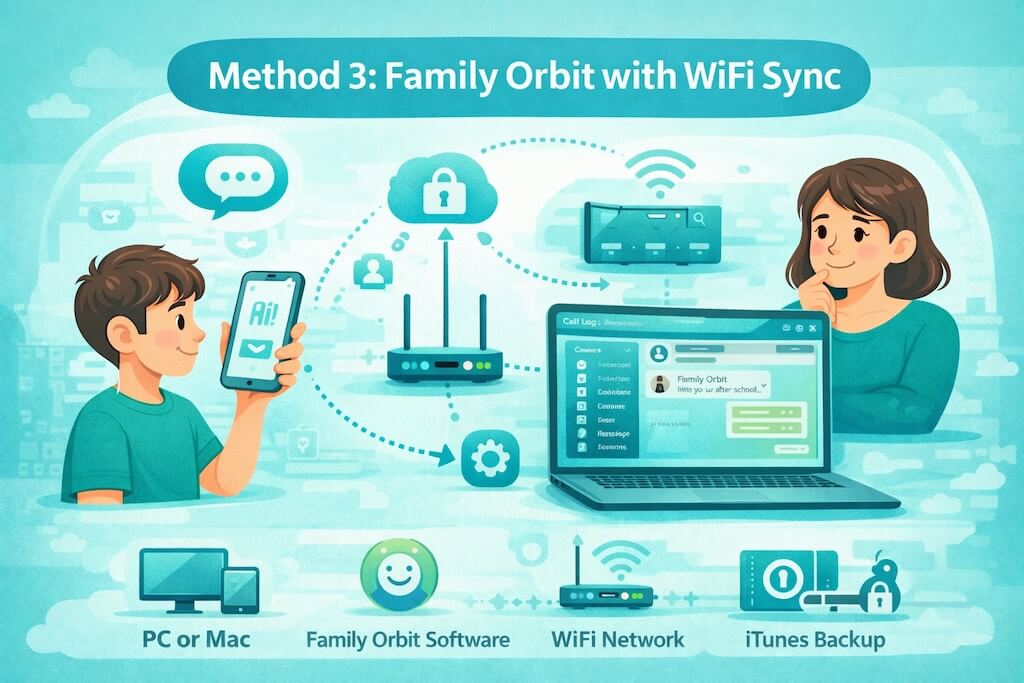
Best for: Passive, advanced monitoring via encrypted iPhone backups
If you’re looking for a more comprehensive iMessage tracker that doesn’t rely on Apple ID access or iOS automations, Family Orbit offers a robust, third-party solution for parents. It works by analyzing local iTunes backups of your child’s iPhone and extracting data such as iMessages, SMS, call logs, contacts, photos, and more.
This approach is especially useful if you want to monitor text messages on iPhone, even those that have been deleted — without jailbreaking or violating Apple’s privacy systems.
How It Works
Family Orbit works by syncing with your child’s iPhone backup via WiFi, then scanning that backup for readable data. Once encrypted backups are enabled and linked to the software, the program can automatically update and extract messages each time the iPhone is backed up to the same network.
You don’t need ongoing access to the device once set up — but you do need initial access to the phone and a trusted home WiFi network.
What You’ll Need
- A Mac or Windows PC with iTunes installed
- Your child’s iPhone (temporary access to set up)
- Family Orbit software installed on your computer
- A shared WiFi network to enable automatic syncing
- iTunes encrypted backup enabled with a known password
🔒 Security Tip: Encrypted backups allow more complete data extraction (including saved messages and deleted items), and are essential for Family Orbit to access message data.
Step-by-Step Setup Guide
- On your computer, install iTunes (if not already installed).
- Connect your child’s iPhone to your computer via USB.
- In iTunes, enable “Encrypt Local Backup” and create a secure password.
- Let iTunes perform a full backup.
- Download and install Family Orbit from their official website.
- Open the software and scan the most recent backup. iMessages and other data will populate automatically.
- Enable WiFi syncing in iTunes so that future backups occur wirelessly when the phone is nearby.
Benefits
- 📜 Access to full message history, including some deleted iMessages
- 📶 Wireless syncing after initial setup
- 🔍 Extracts more than just texts — also call logs, app usage, contacts, and more
- 🧭 Great for long-term, passive monitoring without needing daily access
- 🔐 Secure and private — no cloud or jailbreaking involved
Limitations
- 💻 Requires a desktop or laptop with iTunes installed
- 📱 Initial setup needs unlocked access to the child’s iPhone
- 🗂️ Only updates data when a new backup occurs
- 🧪 Some antivirus tools may flag third-party data extractors
- 🔔 Child might notice backup prompts or battery drain
For parents serious about using a professional-grade iMessage tracker, Family Orbit offers a comprehensive, non-invasive way to monitor text messages on iPhone, ensuring you’re aware of what’s happening without directly accessing the device each day.
Comparison of Monitoring Methods
| Feature / Method | iMessage Sync (Apple ID) | Shortcuts AutoForward | Family Orbit (WiFi Sync) |
|---|---|---|---|
| ✅ Requires Apple ID access | Yes | No | No |
| 🔐 Shows Deleted Messages | No | No | Sometimes |
| 📩 Monitors Incoming Messages | Yes | Yes (only incoming) | Yes |
❓ Frequently Asked Questions (FAQs)
1. How can my parents see my texts?
Parents can see your texts if they have access to tools like Family Orbit or use methods such as iMessage sync via Apple ID. These tools allow them to review iMessages and SMS messages sent and received, usually for safety and parental guidance purposes.
2. Can iMessages be monitored?
Yes. iMessages can be monitored using a few different methods:
- Apple ID sync (if parents have login access)
- Shortcuts automation (to forward messages)
- Monitoring software like Family Orbit that pulls messages from device backups
iMessages are encrypted during transmission, but once they appear on a device or backup, they can be read via legitimate monitoring tools.
3. Is there a way to monitor iPhone text messages without jailbreaking?
Yes. All the methods covered in this guide — including iMessage sync, Shortcuts automation, and Family Orbit — do not require jailbreaking the device. These options work within Apple’s standard system framework.
4. How can I see my daughter’s text messages on my iPhone?
You can use one of these approaches:
- Sign in to your daughter’s Apple ID on your device and sync iMessages.
- Set up a Shortcuts automation on her phone to forward incoming messages to your number.
- Use Family Orbit to sync her iPhone’s backups and read text content securely.
5. Can deleted iMessages be recovered?
Yes — in some cases. Tools like Family Orbit, which analyze encrypted iTunes backups, can sometimes extract deleted messages if they still exist in the backup data. However, once fully deleted from both the device and backup, they may no longer be retrievable.
6. Is it legal to monitor my child’s iPhone messages?
In most jurisdictions, parents are legally allowed to monitor their minor child’s phone usage — especially when the device is owned or managed by the parent. However, local laws vary, and it’s important to ensure your monitoring is ethical, consensual when appropriate, and focused on safety, not control.
Legal Disclaimer
This guide is intended solely for lawful and ethical parental use.
Parents are generally permitted to monitor their minor child’s digital activity for safety, especially when using a parent-owned device. However, it’s your responsibility to ensure compliance with local laws, state-level privacy regulations, and Apple’s terms of use.
This article does not constitute legal advice. Always consult with a legal professional if you’re unsure about the legality of monitoring in your region or circumstances.
Final Thoughts
Monitoring your child’s messages isn’t about spying — it’s about supporting, guiding, and protecting them in a connected digital world.
Whether you:
- Use Apple’s native iMessage sync
- Set up a creative Shortcuts-based message forwarder
- Or rely on a professional tool like Family Orbit with WiFi syncing…
…the most important part of digital parenting is trust, not control. Combine the right tools with open conversations, and you’ll create a safer, more respectful environment for your child to grow.
- Monitor Calls & Text Messages
- View Photos and Videos
- Location Tracking & Geofence
- Monitor WhatsApp & Kik
- Detect & Alert for Inappropriate Activities
- Monitor Websites Visited
- Compatible with Android and iOS