![10 Ways To Pause Location On Life 360 Without Anyone Knowing [2026]](https://www.familyorbit.com/blog/wp-content/uploads/2024/04/ways-to-pause-location-life360-809x485.jpg)
You cannot reliably pause Life360 without leaving any sign. Turning off Location Sharing makes the map display “Location Sharing Paused.” Disabling location permission can show a “Location permissions off” alert, logging out can show “Logged out of Life360,” and losing connectivity may leave a greyed-out icon or an old location.
That does not mean you have no privacy options. Life360 lets you stop sharing with a specific Circle, and its optional Bubble feature can temporarily show only an approximate area. Phone settings such as Airplane Mode, Low Power Mode, and background restrictions may interrupt updates, but they are not invisible or dependable ways to freeze your location.
Reviewed July 2026 against current Life360 support guidance. Exact menu names and status messages can vary by phone, operating-system version, app version, and Circle settings.
Can You Pause Life360 Without Anyone Knowing?
Not with certainty. Life360 is designed to make location-sharing problems visible. Circle members may see a paused-sharing message, a permissions warning, an offline or greyed-out profile, or a last-known location that has stopped refreshing.
Looking for a Life360 Alternative?
If you are looking for more than basic family location sharing, Family Orbit combines location tracking with parental controls, location history, geofences and family safety tools.
Explore Family Orbit Begin Free Trial
Family Orbit is designed for transparent family safety and parental supervision—not hidden location tracking.
The safest approach is to use Life360’s own privacy controls and be clear about what they show. Here is the practical difference between the main options:
| Method | What happens | What Circle members may see | Reliable pause? |
|---|---|---|---|
| Turn off Location Sharing | Stops sharing in the selected Circle | “Location Sharing Paused” | Yes |
| Create a Bubble | Shares an approximate area for a limited time | An active Bubble instead of precise location | Yes, while active |
| Disable location permission | Stops Life360 receiving new GPS location | “Location permissions off” or unavailable location | Yes |
| Log out of Life360 | Stops your account updating from that phone | “Logged out of Life360” | Yes |
| Airplane Mode or no internet | Usually prevents the phone uploading new data | Old location, connection problem, or greyed-out icon | Temporary |
| Low Power Mode or Battery Saver | May delay background updates | Stale or irregular updates | No |
| Restrict background activity or data | May interrupt updates while Life360 is not open | Stale location or connection issue | No |
| Turn the phone off | Stops live updates | Last-known location until the phone reconnects | Yes, while off |
How Life360 Location Sharing Works
Life360 is a family location app that uses the phone’s location services together with cellular data or Wi-Fi. For consistent updates, the phone normally needs to be switched on, logged into Life360, connected to the internet, and allowed to use precise location in the background.
Life360’s own location-accuracy guidance recommends keeping Airplane Mode, Data Saver, Power Saving, and iPhone Low Power Mode off. It also advises against using a VPN because a VPN can interfere with accuracy. A VPN changes your internet route; it does not normally replace the GPS coordinates reported by your phone.
1. Turn Off Location Sharing for a Life360 Circle
This is the official and most dependable way to pause your location for a particular Circle:
- Open the Life360 app.
- Use the Circle Switcher to select the Circle you want to change.
- Tap Settings.
- Tap Location Sharing.
- Turn the Location Sharing toggle off.
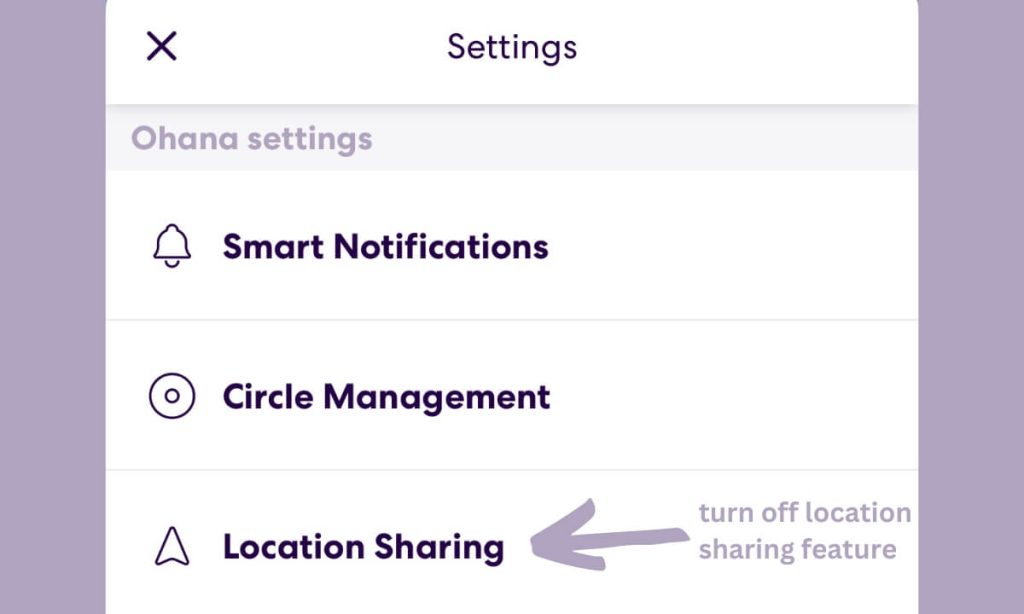
According to Life360 support, the map will display “Location Sharing Paused”. Turning sharing off in one Circle does not automatically turn it off in your other Circles, so check each Circle separately.
Two exceptions are worth knowing. Using Check In shares the location you select, and sending an SOS Alert can update your location in every Circle even when regular Location Sharing is turned off.
2. Use a Life360 Bubble for Temporary Privacy
A Bubble is the closest Life360 offers to a temporary privacy mode. Instead of showing your precise location, it shows an approximate area while keeping messaging and other safety features available.
- Open the Life360 map.
- Tap your avatar.
- Tap Create a Bubble.
- Choose the Bubble’s approximate size and duration.
- Confirm the Bubble.
Life360 says a Bubble can be set for up to six hours and can cover an area up to 25 miles. Availability may depend on your plan and whether a Circle admin has enabled Bubble access. Circle members can see that a Bubble is active, and another member may be able to burst it if they are concerned about safety. A detected crash or emergency may also burst the Bubble automatically. See Life360’s current Bubble instructions.
3. Turn Off Life360 Location Permission
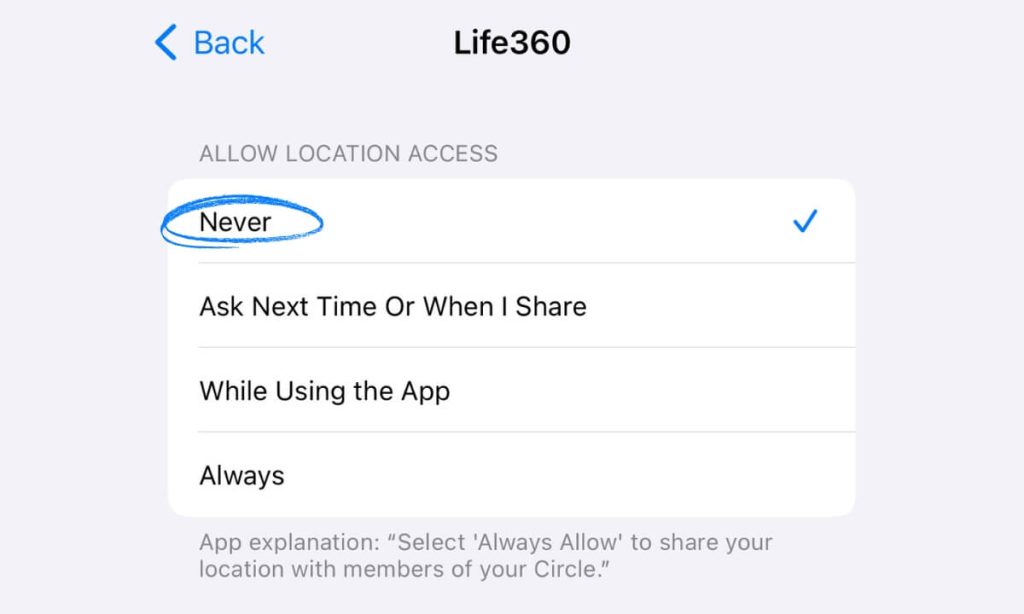
Removing location permission prevents Life360 from receiving new GPS location from the phone. It is effective, but it is not hidden: Life360 says other members may see a “Location permissions off” alert.
On iPhone
- Open Settings.
- Tap Privacy & Security.
- Tap Location Services.
- Select Life360.
- Choose Never to stop location access.
On Android
- Open Settings.
- Tap Apps and select Life360.
- Tap Permissions.
- Tap Location.
- Choose Don’t allow.
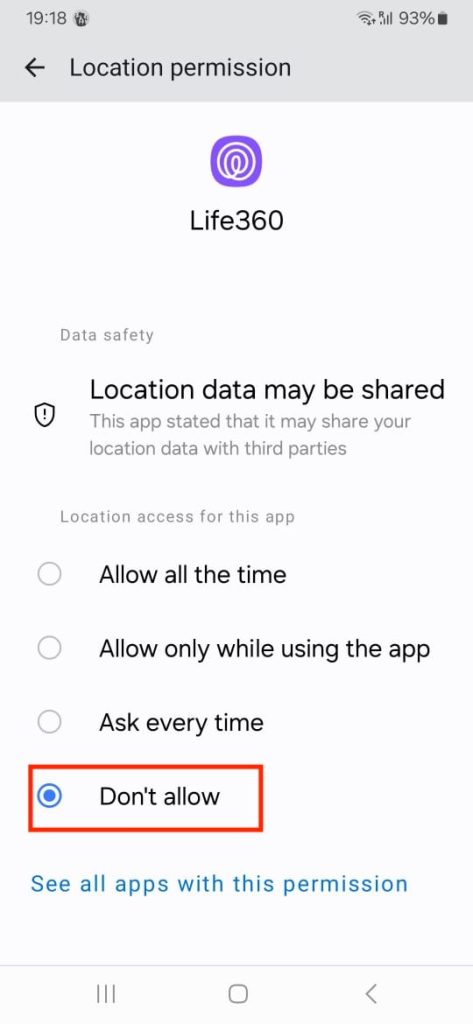
Menu names vary across Android manufacturers. When you restore permission, Life360 generally works best with precise location enabled and permission to access location in the background.
4. Turn On Airplane Mode or Disconnect the Internet
Airplane Mode normally interrupts the phone’s cellular connection and may also turn off Wi-Fi. The phone can still be capable of calculating a GPS position, but Life360 cannot upload a fresh location without a working data connection.
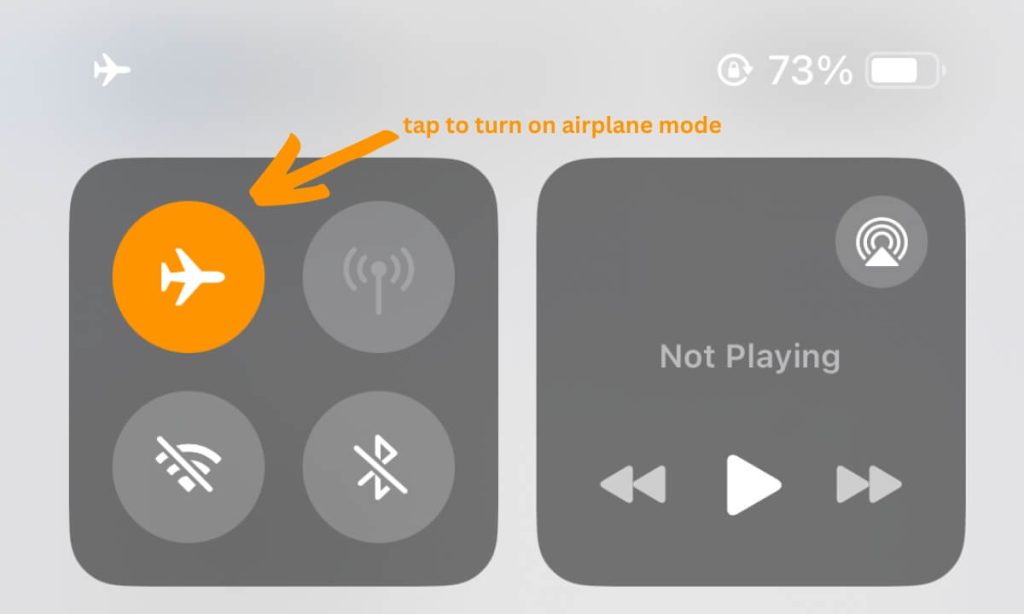
This is not an invisible freeze. Other members may see your last-known location, an old timestamp, a greyed-out icon, or a connection problem. Wi-Fi can also be switched back on while Airplane Mode remains enabled, which may allow apps to reconnect.
5. Use Low Power Mode or Battery Saver
Low Power Mode on iPhone and Battery Saver on Android can restrict background activity. They may delay Life360 updates, but they do not guarantee that location sharing will stop. Opening Life360 or reconnecting the phone may refresh the location again.
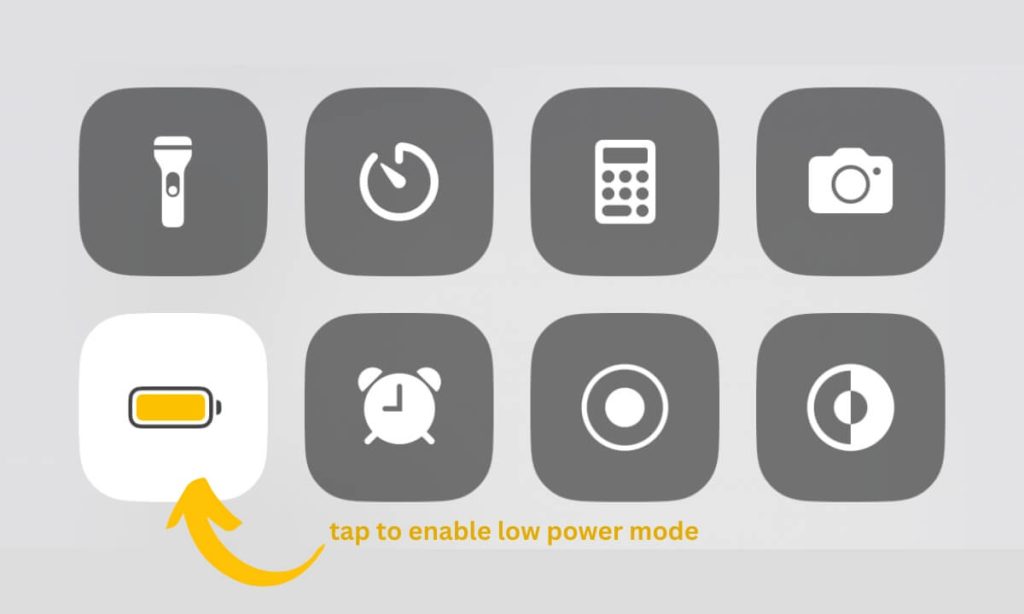
There is no universal rule that Life360 stops updating as soon as the battery reaches 10%. Battery level, phone model, power settings, and operating-system behavior can all affect the result. Life360 recommends keeping power-saving features off when accurate tracking is required.
6. Restrict Background Activity or Background Data
Life360 relies on background access to refresh location while you use other apps or lock the screen. Restricting that access may create delayed or irregular updates, but it is not as dependable as turning off Location Sharing or removing location permission.
On iPhone
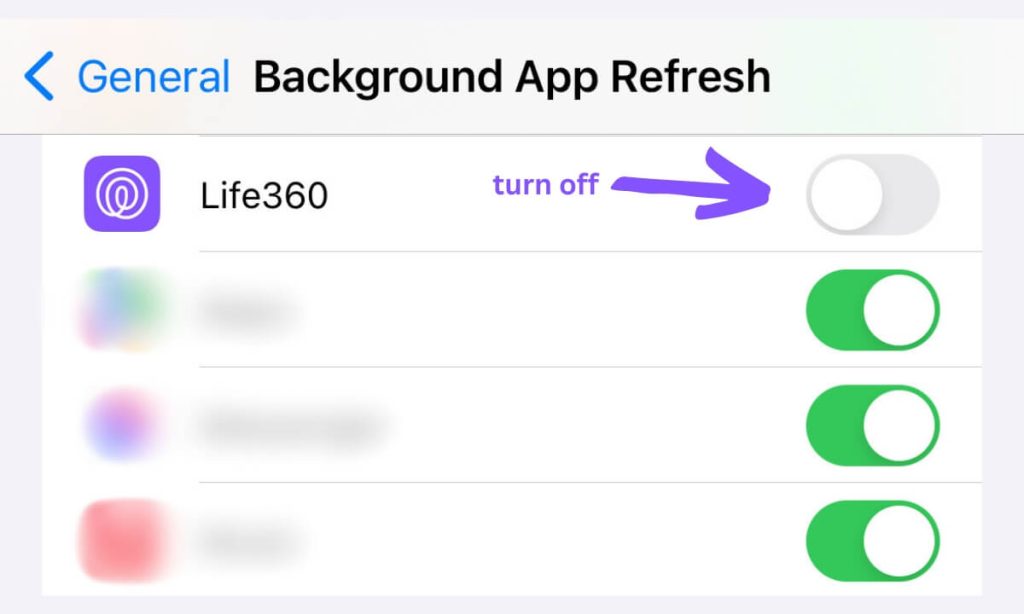
Go to Settings > General > Background App Refresh, find Life360, and turn its access off. The exact effect can vary because iOS manages location and background activity separately.
On Android
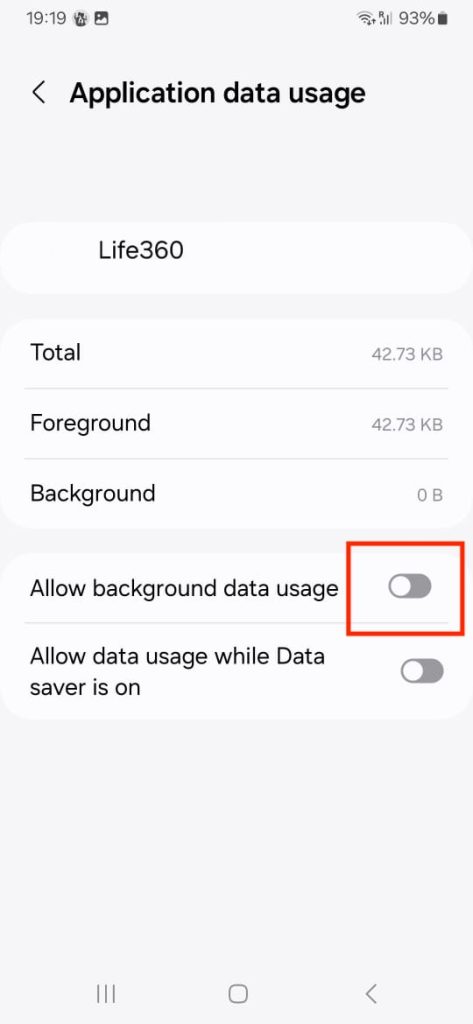
Depending on the phone, open Settings > Apps > Life360 and review Battery, Mobile data, or Background data. Selecting a restricted battery mode or disabling background data may delay updates. Android labels differ between Samsung, Google Pixel, Xiaomi, OnePlus, and other manufacturers.
If location is stopping unexpectedly rather than by choice, use our separate guide to fix Life360 not updating location.
7. Turn Off the Phone, Log Out, or Uninstall Life360
Turning off the phone stops live updates until it powers on and reconnects. Circle members may continue seeing the last-known location.
Life360 states that location no longer updates when a member logs out or turns off location permissions. The observing Circle can display a “Logged out of Life360” alert when the account is signed out.
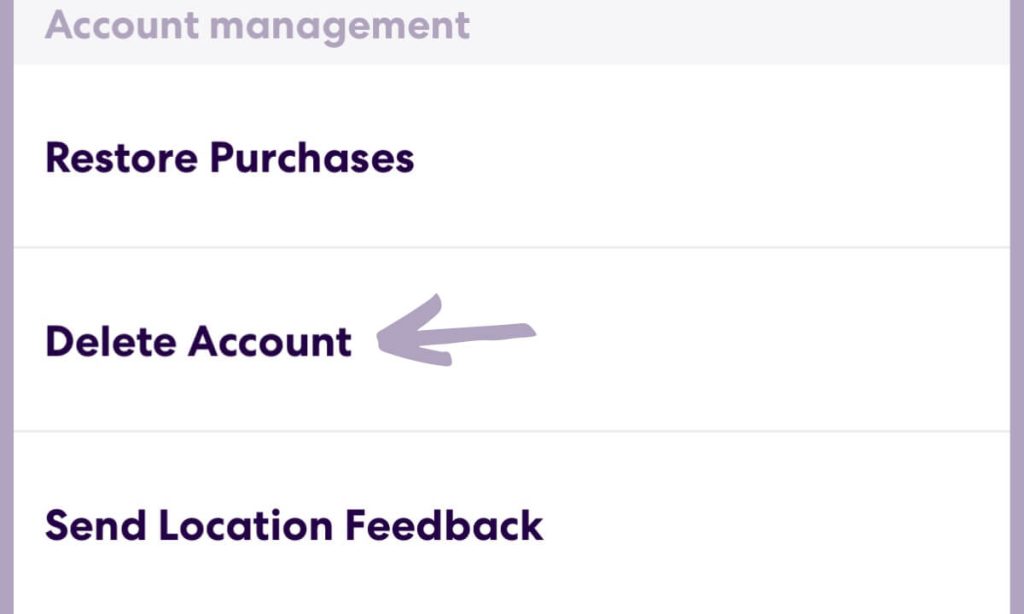
Uninstalling or offloading the app also prevents that installed copy from sending new updates, but it does not necessarily remove the account from every Circle or cancel a paid membership. Deleting the Life360 account is a separate action and is far more permanent than temporarily pausing location.
Will Life360 Notify Someone When You Turn Off Location?
Do not assume it will be invisible. Life360 does not document one identical push notification for every possible phone setting, but it does show clear in-app status messages for several conditions:
- Location Sharing turned off: the map displays “Location Sharing Paused.”
- Phone location permission turned off: members may see “Location permissions off.”
- Logged out: members may see “Logged out of Life360.”
- App loses connection: the member’s icon may be greyed out.
- Bubble active: members see the Bubble rather than your exact location.
- Phone off or offline: the last-known location may remain without refreshing.
Life360 also offers No Show Alerts that can tell a Circle member when an expected arrival cannot be confirmed because location sharing is off. In practice, even when no push alert appears, stale or missing location data is often noticeable inside the app.
Methods That Do Not Reliably Work
Using a VPN
A VPN does not normally spoof the GPS coordinates used by Life360. Life360 advises against VPN use because it can interfere with location accuracy, but it should not be treated as a dependable way to set a false location.
Relying on Low Power Mode Alone
Power-saving settings can delay background activity, but Life360 may update again when the app opens, the phone moves, settings change, or the operating system allows another background refresh.
Using GPS-Changing Software or a Second Phone
Location-changing software can be unreliable, may require developer settings or a computer, and can create implausible movement or other warning signs. Leaving a logged-in phone somewhere else also creates obvious safety and trust problems. Neither should be presented as a guaranteed invisible “ghost mode.”
Reasons Someone May Want to Pause Life360
Wanting some privacy does not automatically mean someone is doing something dangerous. Common reasons include:
- Feeling watched or checked too frequently
- Wanting privacy during a surprise, appointment, or personal activity
- Sharing with one Circle but not another
- Reducing battery or mobile-data use
- Taking a temporary break from constant location sharing
- Addressing an unhealthy or controlling relationship
Location sharing can be valuable in emergencies, during travel, or when coordinating pickups. But it works best when everyone understands when it will be checked, who can see it, and what happens when someone wants a break.
A Better Privacy Compromise for Families
Instead of trying to create an undetectable pause, families can agree on a less intrusive setup:
- Use a Bubble for short periods of approximate location sharing.
- Use Check In at agreed times instead of watching the map continuously.
- Limit which Circles receive location.
- Agree that location is checked for safety and logistics, not constant supervision.
- Keep SOS and emergency contacts available.
- Review the arrangement as a child becomes older and more independent.
If the issue is that Life360 no longer fits your family, compare it with other apps like Life360, read our Life360 vs Apple Find My comparison, or learn how to leave a Life360 Circle.
Frequently Asked Questions
Can you freeze Life360 at one location?
Disconnecting the phone or turning it off can leave the last-known location on the map, but the old timestamp or lost-connection status may make the interruption obvious. Life360 does not provide an official invisible “freeze at this location” button.
Does Airplane Mode pause Life360?
Airplane Mode usually prevents Life360 from uploading a fresh location over cellular data. However, the app may show stale information or a connection problem, and reconnecting Wi-Fi can allow data to resume.
Does Low Power Mode stop Life360?
Not reliably. Low Power Mode or Battery Saver may delay background updates, but it does not guarantee that Life360 will stop reporting location.
What does Life360 show when location is turned off?
The status depends on what was disabled. Members may see “Location Sharing Paused,” “Location permissions off,” “Logged out of Life360,” a greyed-out icon, or a last-known location that is no longer refreshing.
Can you pause location for one Circle only?
Yes. Life360 says turning off Location Sharing in one Circle does not affect your other Circles. Select the correct Circle before changing the toggle.
Does a Life360 Bubble hide your exact location?
While active, a Bubble shows an approximate area instead of precise location. Other Circle members can see that the Bubble is active, and an emergency or another member may burst it.
What happens if the phone is switched off?
Life360 cannot receive new updates from a powered-off phone. The map may continue showing the phone’s last-known location until it is switched on and reconnects.
Can Life360 track you after you log out?
Life360 states that your location no longer updates when you log out. Circle members may see a “Logged out of Life360” status.
Does uninstalling Life360 cancel the subscription?
No. Removing the app and cancelling a paid Life360 membership are separate actions. Manage the subscription through the store or billing account where it was purchased.
What should parents do when a teen turns off Life360?
First establish whether it was intentional or a technical problem. Avoid turning the conversation into an accusation. Explain when location is genuinely needed, listen to the teen’s privacy concerns, and agree on reasonable rules such as Check Ins, pickup alerts, or limited location checks.
Final Thoughts
The honest answer is that there is no guaranteed way to pause Life360 without anyone knowing. Official controls make the change visible, while phone-level workarounds can create stale locations, warnings, or connection problems.
For temporary privacy, the cleanest choices are to turn off sharing for the relevant Circle or use a Bubble where available. For families, a clear agreement about when location will be checked is usually more sustainable than trying to defeat the app in secret.
- Monitor Calls & Text Messages
- View Photos and Videos
- Location Tracking & Geofence
- Monitor WhatsApp & Kik
- Detect & Alert for Inappropriate Activities
- Monitor Websites Visited
- Compatible with Android and iOS