
![View Twitter Without an Account – 5 Proven Ways to Browse X Anonymously [Updated 2026]](https://www.familyorbit.com/blog/wp-content/uploads/2025/09/view-twitter-without-an-account-809x485.jpg)
Twitter (now rebranded as X) remains one of the internet’s most important hubs for breaking news, politics, and trending conversations. But not everyone wants to sign up or log in just to read a tweet or check a public profile.
The good news? You can view some public Twitter/X profiles and posts without an account using direct profile links, search engines, or third-party Twitter viewers. However, X frequently places login walls around content, and no legitimate viewer can access private accounts.
This guide walks you through five proven methods to view Twitter without an account — starting with our own Family Orbit Twitter Viewer.
Method 1: Use Family Orbit’s Twitter Viewer (Fastest & Easiest)
If your goal is “read the tweet, move on with life,” a dedicated viewer is the least annoying path. Family Orbit’s Twitter Viewer pulls public profiles and their recent posts into a clean, ad-light layout — no sign-in, no app install, no getting nagged halfway down the feed.
Why it’s the best first stop
- Zero friction. Paste a public @username, hit View, done.
- Focused views. Toggle Tweets, Media, or Replies — skip the noise you don’t want.
- Mobile-friendly. Scales nicely on phones (no JavaScript-heavy bloat).
- Pagination that behaves. “Load more” fetches additional posts without a full reload.
- Privacy-respecting. Only shows public content; no DMs, no private accounts, no weird gray areas.
What to expect
- Profile header: avatar, bio, followers/following, quick link to open on X.
- Inline media: images render crisply; videos play inline or pop out in a lightbox.
- Error clarity: “Protected account,” “User not found,” or “Rate-limited” states are handled gracefully.
TL;DR: For quick, legit access to public tweets without logging in, this is the smoothest route. Try it right here:
Try the Twitter Viewer Now
Paste a public handle below, pick what you want to see, and go.
(Example: @nasa, @Reuters, @TheOnion)
View Twitter Without an Account (Free Viewer)
Enter any public Twitter/X handle. No login required.
Method 2: View Public Profiles with Direct Links

This is the no-frills route. Every X (Twitter) account has a public URL. If the profile isn’t protected, you can read it in any browser—no account, no app, no extensions.
How to do it
Type this pattern in your address bar:
https://twitter.com/username
Examples:
https://twitter.com/nasahttps://twitter.com/Reutershttps://twitter.com/TheOnion
Hit enter and you’ll see the bio, header image, follower counts, and a scrolling list of recent tweets. Click a tweet to open its permalink:
https://twitter.com/username/status/TWEET_ID
What you can see
- Profile basics: name, handle, bio, avatar, header, join date.
- Public tweets: text, images, videos, and quoted tweets.
- Engagement meta: likes, reposts, and reply counts on public posts.
- Permalinks: copy/share the exact tweet URL without logging in.
Limitations to expect
- Protected accounts are off-limits. If the lock icon is on, you’ll see “These posts are protected.”
- Soft login walls. After a few screens of scrolling, X may nudge you to log in.
- Search friction. Discovery (searching for people or topics) is limited without being signed in.
- Spaces, DMs, Lists: you can’t join or view most of these without an account.
Pro tips
- If you don’t know the exact handle, use Google to find it fast:
site:twitter.com "person or brand name"Then click the result that matches the official profile. - Use the mobile-friendly domain if desktop feels heavy:
https://mobile.twitter.com/usernameIt sometimes lets you scroll a bit further before the login prompts show up. - For specific conversations, go straight to the status URL (permalink). Those pages often load even when profile timelines start nagging you to sign in.
When to use this method
- You already know the handle and just need to read a few recent posts.
- You’re fact-checking a newsy claim and want the original tweet.
- You’re sharing a link to a tweet in chat or email and need the direct URL.
Bottom line: Direct links are perfect for quick checks when you already know the username or have a tweet URL. If you want cleaner scrolling, media tabs, and “load more” without hitting login nudges, Method 1 (the Family Orbit Twitter Viewer) is the smoother experience.
Method 3: Browse Trending Topics via Twitter Explore
If you don’t have a specific handle in mind but want to keep up with what’s happening in real time, Twitter’s (X’s) Explore page is your best bet. Even without an account, you can dive into breaking news, viral memes, sports updates, and entertainment buzz.
How to Access It
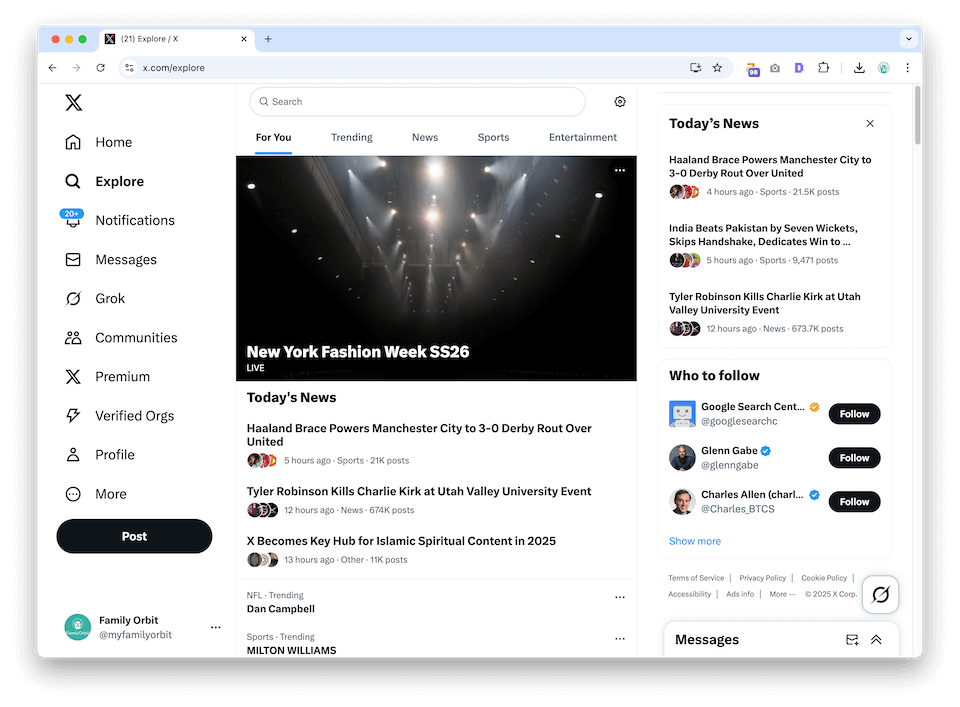
Simply go to:
https://x.com/explore
This page showcases trending hashtags, hot topics, and curated event highlights. On mobile, you can also try:
https://mobile.x.com/explore
Sometimes the mobile view lets you scroll a bit further before login prompts appear.
What You Can See
- Trending hashtags: Click on a hashtag to view a stream of related tweets.
- News modules: Collections of tweets around breaking stories (politics, tech, disasters, entertainment).
- Live events: Sports matches, award shows, global events often have their own Explore cards.
- Personalized categories: In some regions, Explore divides content into News, Sports, Entertainment, and Fun.
Real-World Use Cases
- Breaking news: Wildfire updates, election coverage, or global events often trend first on X.
- Entertainment: Follow Oscars chatter, celebrity news, or new movie releases in real time.
- Sports: Keep up with scores and fan reactions during major games.
- Meme culture: Explore trending jokes or viral challenges without needing an account.
Limitations of Explore
- Login nudges: Scroll too long and X will push you to sign in.
- Curation bias: The Explore page highlights what Twitter wants to promote, not necessarily everything.
- No customization: Without an account, you can’t fine-tune location or interests.
- Interaction locked: You can only read — no liking, reposting, or replying.
Pro Tip
Pair Explore with Google search filters (see Method 4) to dig deeper into a specific topic or hashtag. For instance, if “#SpaceX” is trending, but you want older tweets about it, Google can fill in the gaps.
✅ Bottom line: The Explore page is the front door to Twitter without an account. It’s perfect for checking today’s big stories or browsing viral trends. But if you want full profile timelines or scrolling without interruptions, Family Orbit’s Twitter Viewer gives you more control.
Method 4: Use Google Search Filters

Twitter’s own search feature is locked behind the login wall — but Google can be your back door. Since most public tweets and profiles are indexed by Google, you can use advanced search operators to uncover content without ever signing into X.
How It Works
Google’s site: operator restricts results to a single domain. By pairing it with keywords, usernames, or hashtags, you can pull up tweets and profiles indexed on twitter.com.
Practical Examples
- Find tweets from a specific user
site:twitter.com from:@nasa
Shows tweets published by NASA’s account.
- Search by username without remembering the @
site:twitter.com elon musk
Finds Elon Musk’s official profile and tweets mentioning him.
- Look up tweets with a keyword
"bitcoin" site:twitter.com
Lists public tweets that mention “bitcoin.”
- Filter hashtags directly from Google
site:twitter.com "#WorldCup"
Displays hashtag pages like twitter.com/hashtag/WorldCup.
- Combine multiple operators
site:twitter.com from:@Reuters "Ukraine"
Finds Reuters tweets about Ukraine.
Why Use Google Instead of Twitter Search?
- No login required. Works instantly from any browser.
- Flexible discovery. Perfect when you only know part of a name or topic.
- Broader reach. Google sometimes keeps older tweets accessible even if they’re hard to find in Twitter’s native search.
- Research-friendly. Useful for journalists, students, and marketers tracking mentions.
Limitations of This Method
- Not real-time. You’re limited to what Google has already indexed. New tweets can take hours or days to appear.
- Partial coverage. Not every tweet or profile is indexed — sometimes results feel incomplete.
- Login walls still appear. Clicking through can trigger the “Sign in” prompt, especially on timelines.
- Private content excluded. Google cannot see protected accounts.
Pro Tip
Pair Google search with direct links (Method 2) or the Family Orbit Twitter Viewer (Method 1). Use Google to discover the right profile or tweet, then switch over to a dedicated viewer for smoother browsing.
Example workflow:
- Google:
site:twitter.com "climate change"→ find a trending hashtag. - Family Orbit Viewer: paste in a username or hashtag to explore without interruptions.
✅ Bottom line: Google search filters are a powerful hack for discovery on Twitter without logging in. They’re perfect when you’re researching topics or trying to find the right profile — but they’re best combined with a viewer tool for day-to-day browsing.
Method 5: Try Third-Party Twitter Browsers
Beyond direct links and Google hacks, there’s a cottage industry of third-party Twitter browsers. These tools strip away Twitter’s login wall, ads, and tracking to let you browse tweets more comfortably. Some focus on privacy, others on trends or analytics.
Here are some of the most popular ones in 2025:
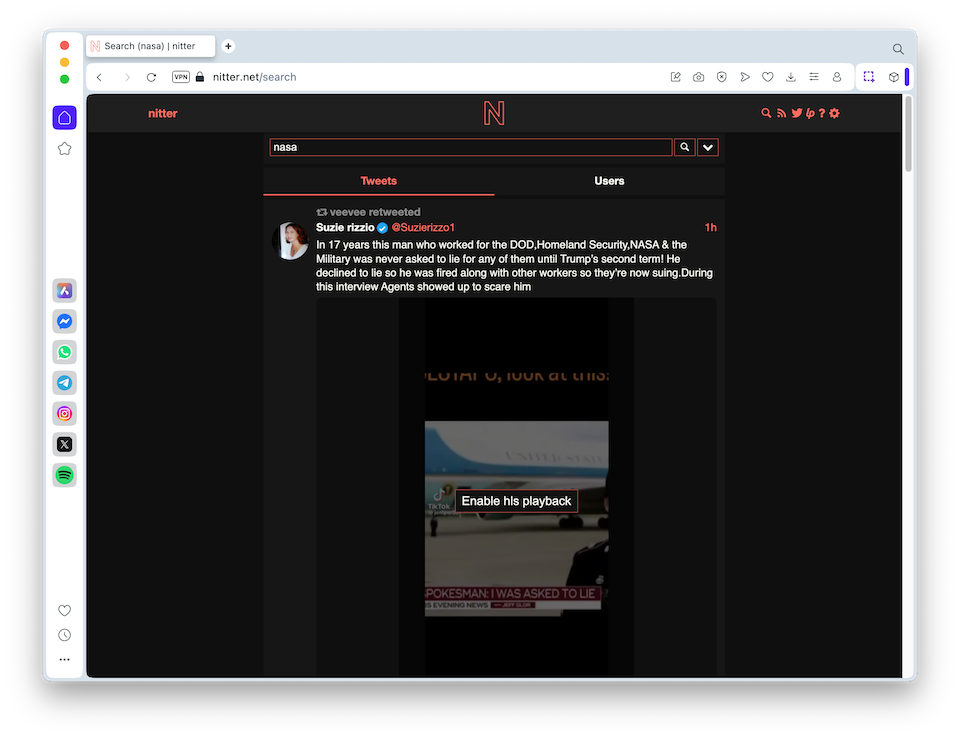
1. Nitter
An open-source, privacy-friendly front-end for Twitter.
Pros:
- Loads tweets quickly without heavy scripts.
- No ads, no tracking, lightweight interface.
- Lets you browse timelines, replies, and media anonymously.
Cons: - Some Nitter instances get blocked or go offline.
- Doesn’t always play videos and GIFs smoothly.
2. Trends24
Focuses on trending topics around the world.
Pros:
- Tracks real-time trending hashtags by country or city.
- Shows hourly trend history.
- Mobile-friendly.
Cons: - Doesn’t show full tweets — just trend lists.
- Redirects you back to Twitter for deeper browsing.
3. Tweet Binder
An analytics tool that surfaces tweets tied to hashtags or campaigns.
Pros:
- Provides stats like tweet volume, reach, and impressions.
- Good for hashtag tracking during events.
- Free reports for light users.
Cons: - Limited free tier; many features require payment.
- Not suited for casual browsing of individual profiles.

4. Fxtwitter
A simple wrapper that reformats tweet links for easier viewing.
Pros:
- Share a tweet with
fxin the link to bypass login walls. - Removes clutter, shows media more cleanly.
- Quick, no-frills browsing.
Cons: - Limited to individual tweet links.
- Doesn’t provide full timelines or hashtags.
5. Twstalker
Let’s you explore user profiles and trending content.
Pros:
- Clean feed-like interface for browsing tweets.
- Supports hashtags, mentions, and profiles.
- Works across devices.
Cons: - Ads can feel intrusive.
- Reliability depends on Twitter’s API changes.
| Method | Profiles | Tweets | Search | Private accounts | Login required |
|---|---|---|---|---|---|
| Direct X link | Sometimes | Sometimes | Limited | No | Sometimes |
| Google search | Yes | Some indexed posts | Yes | No | No |
| Third-party viewer | Public profiles | Usually | Varies | No | No |
| Internet Archive | Archived copies | Sometimes | Limited | No | No |
Why Use Family Orbit Instead?
While these browsers are clever, they often face reliability issues or serve heavy ads. Some are niche, others disappear when Twitter updates its policies.
By contrast, Family Orbit Twitter Viewer offers:
- A consistent, ad-light experience.
- Integrated profile + media viewing in one place.
- A stable tool backed by an established parental monitoring suite.
✅ Bottom line: Third-party browsers are useful for specific needs — privacy (Nitter), trends (Trends24), analytics (Tweet Binder). But if you want a steady, no-hassle way to view Twitter without an account, Family Orbit’s Twitter Viewer is the safer, long-term option.
What You Can & Can’t Do Without an Account
You Can:
- View public profiles.
- Read tweets, captions, and hashtags.
- Check follower counts and bios.
You Can’t:
- Access private or protected accounts.
- Like, retweet, or comment.
- Join Twitter Spaces or DMs.
Smarter Monitoring with Family Orbit
Anonymous viewers are useful for checking occasional public content. Parents who need ongoing visibility into a child’s social-media activity need a consent-based parental monitoring solution rather than repeatedly searching public profiles. That’s where Family Orbit goes further.
- AI-Powered Text Alerts 🧠 – Instantly detect risky keywords across social media, texts, and messaging apps.
- Location & Geofencing 📍 – Get notified when your child arrives or leaves key places.
- Comprehensive Monitoring 📷 – See calls, photos, and app activity beyond just Twitter.
Learn more: Start your free Family Orbit trial
FAQs
Q1. Can I view private Twitter accounts anonymously?
No, private accounts require approval from the account owner.
Q2. Is it legal to use Twitter viewers?
Yes, if you’re only accessing public content.
Q3. Can I see deleted tweets without an account?
No, but cached versions sometimes appear in Google results.
Q4. Does Twitter know when I browse without an account?
No, browsing public profiles doesn’t notify the user.
Conclusion
You don’t always need a Twitter account to stay informed. From direct profile links to Google searches, cached content, or dedicated tools like the Family Orbit Twitter Viewer, there are many ways to keep up with the conversation — no login required.
And if you’re a parent who needs more than anonymous browsing, Family Orbit’s AI-powered monitoring helps you stay one step ahead, across Twitter and beyond.
👉 Try the Twitter Viewer Tool today, or check out our Anonymous Instagram Viewer.
- Monitor Calls & Text Messages
- View Photos and Videos
- Location Tracking & Geofence
- Monitor WhatsApp & Kik
- Detect & Alert for Inappropriate Activities
- Monitor Websites Visited
- Compatible with Android and iOS